

Widget Types
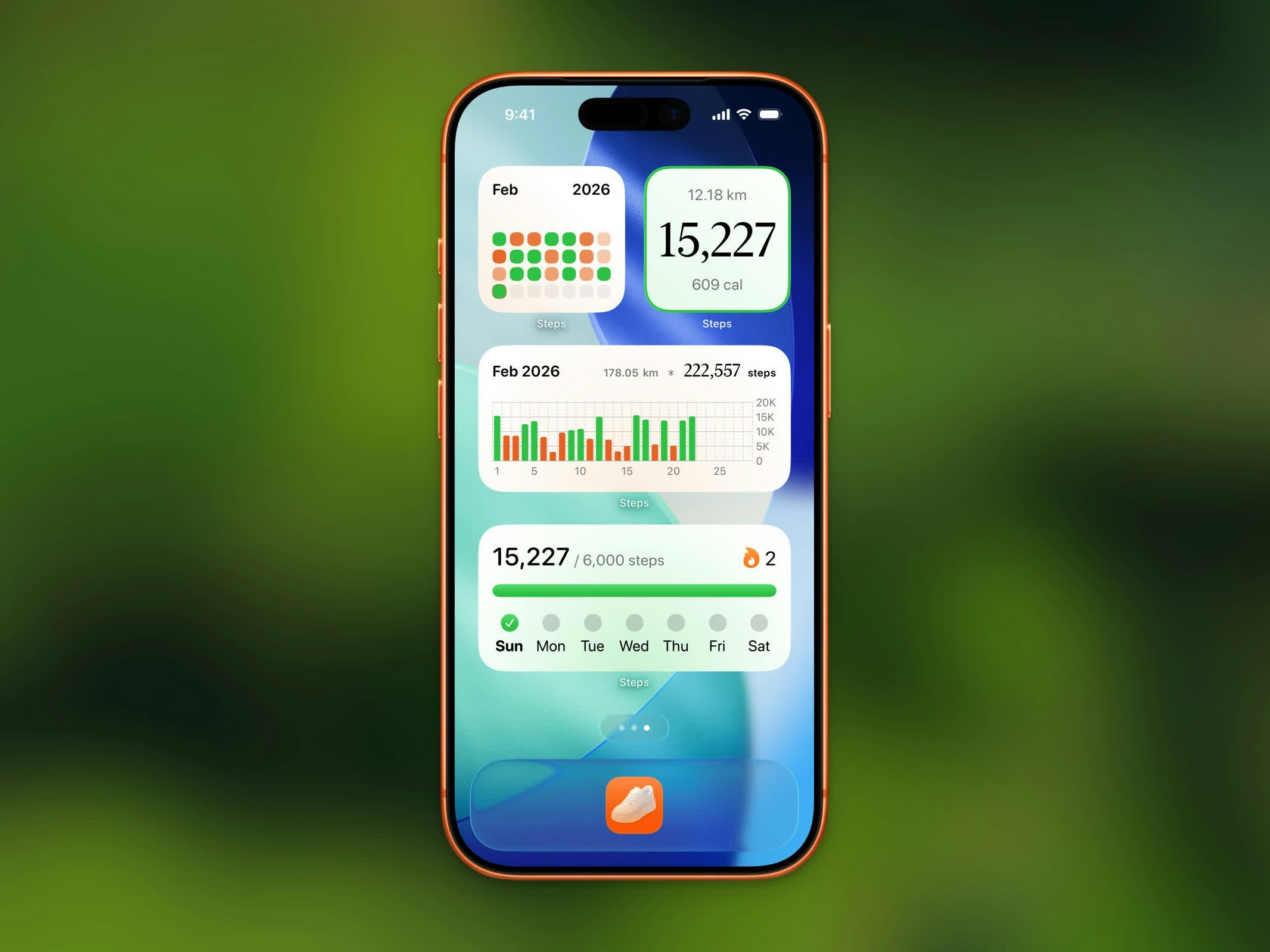
Steps widgets on the Home Screen
Stepboard Ranking Widget
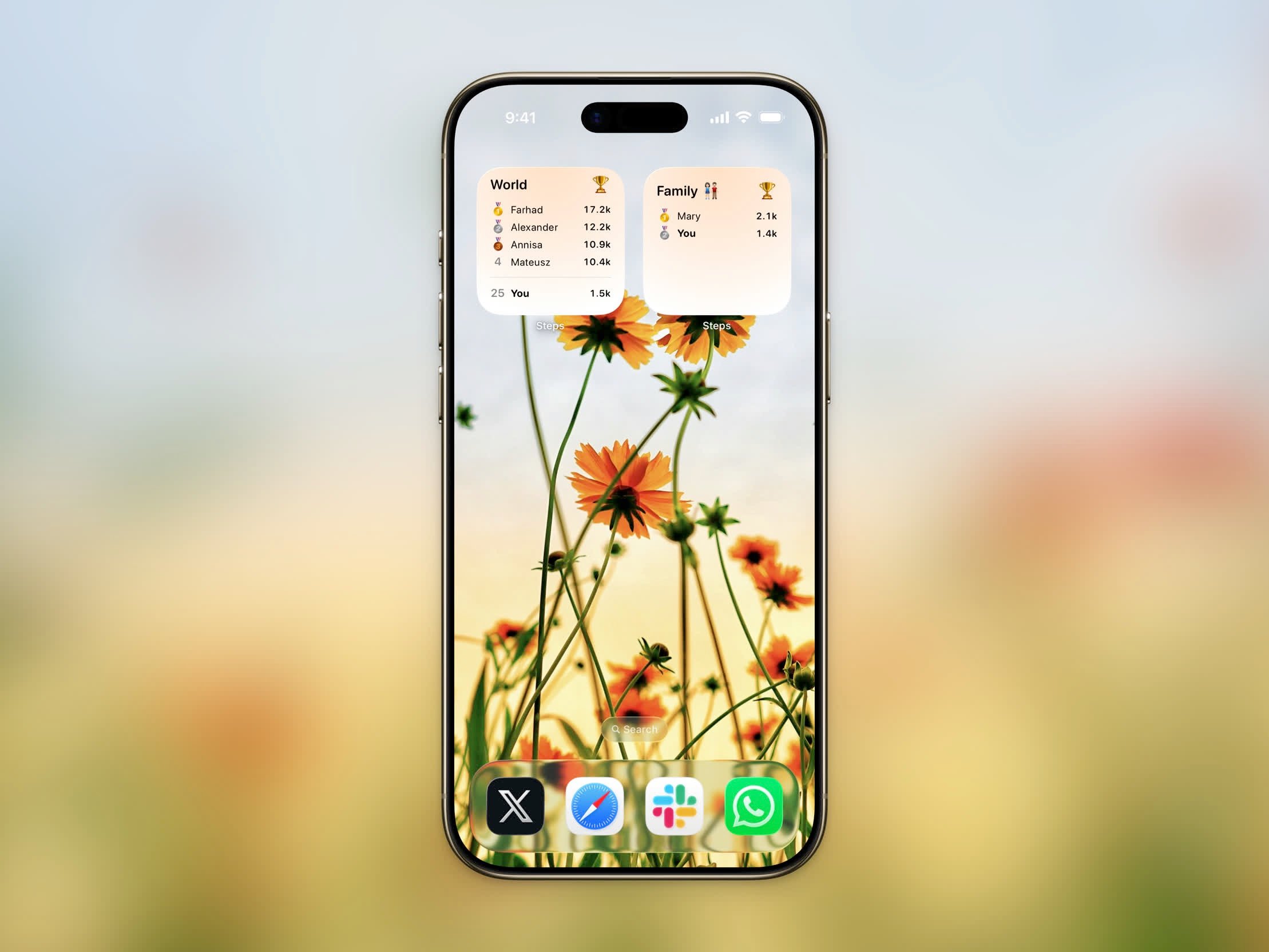
Stepboard Ranking widget showing today's top 5 and your rank
Start Workout Widget
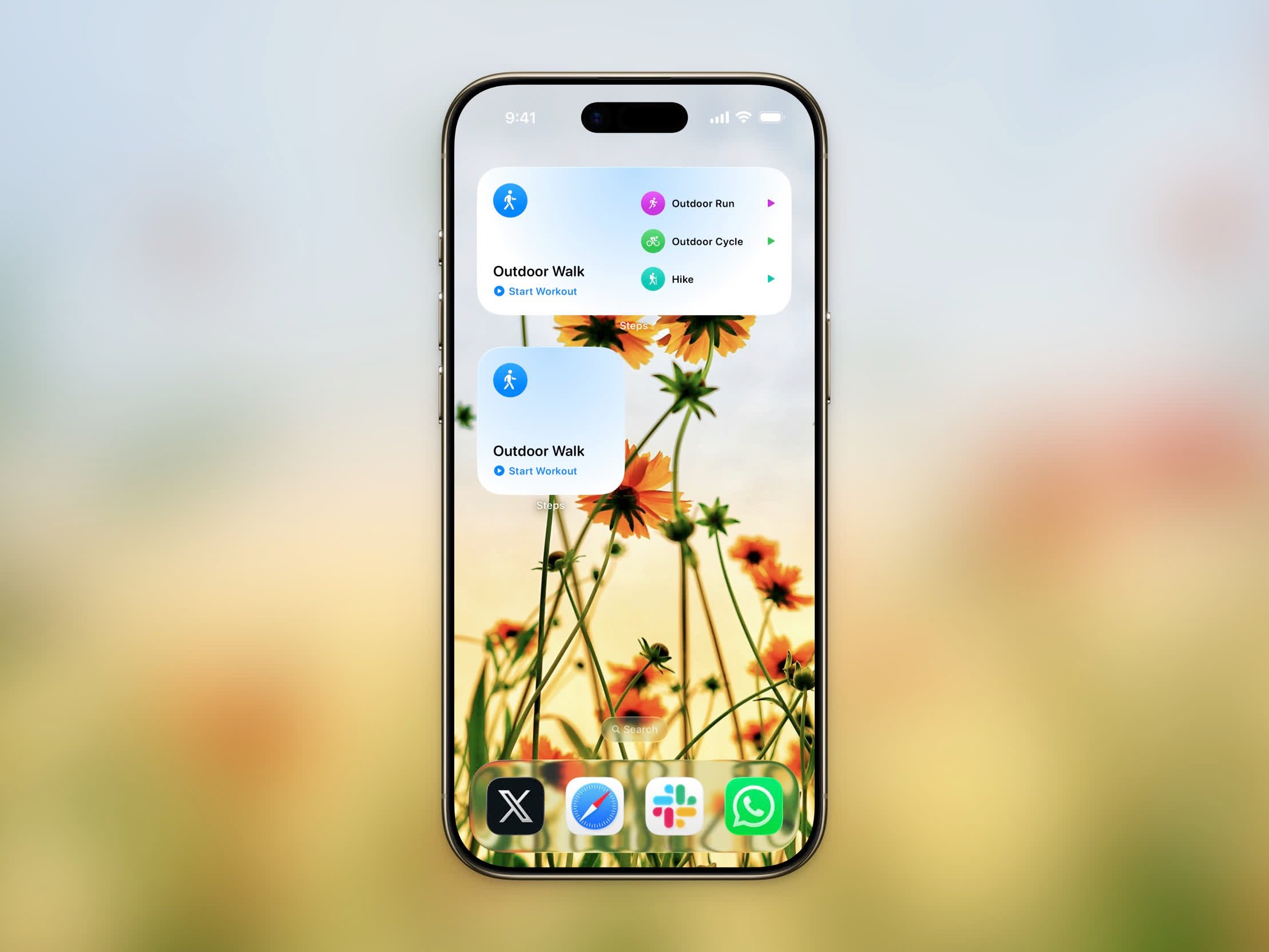
Start Workout widget for one-tap workout tracking
- Small — a single configurable workout type with a Start button
- Medium — your main workout plus quick-start shortcuts for three more types
Workout Calendar Widget
The Workout Calendar widget marks each day you trained with that day’s activity, so a month of running, walking, and strength work reads at a glance.- Medium and Large are available on every supported iPhone
- Extra Large is available on iOS 27
The Workout Calendar widget is a Pro feature.
Yearly Goal Widget
The Yearly Goal widget tracks your progress toward your yearly step goal. It shows a progress bar, whether you’re on track or behind, and supporting stats. It’s available in small and medium sizes.Live Activity
During an active workout, a Live Activity appears on your Lock Screen and in the Dynamic Island (iOS 26+). It shows:- Workout type icon
- Elapsed time
- Distance covered
- Calories burned
- Current pace
Adding Widgets
1
Long-press your Home Screen
Touch and hold an empty area on your Home Screen until the apps start jiggling.
2
Tap the + button
Tap the + button in the top-left corner to open the widget gallery.
3
Search for Steps
Type “Steps” in the search bar to find all available widgets.
4
Choose a widget
Select the widget type and size you want, then tap Add Widget.
Lock Screen Widgets
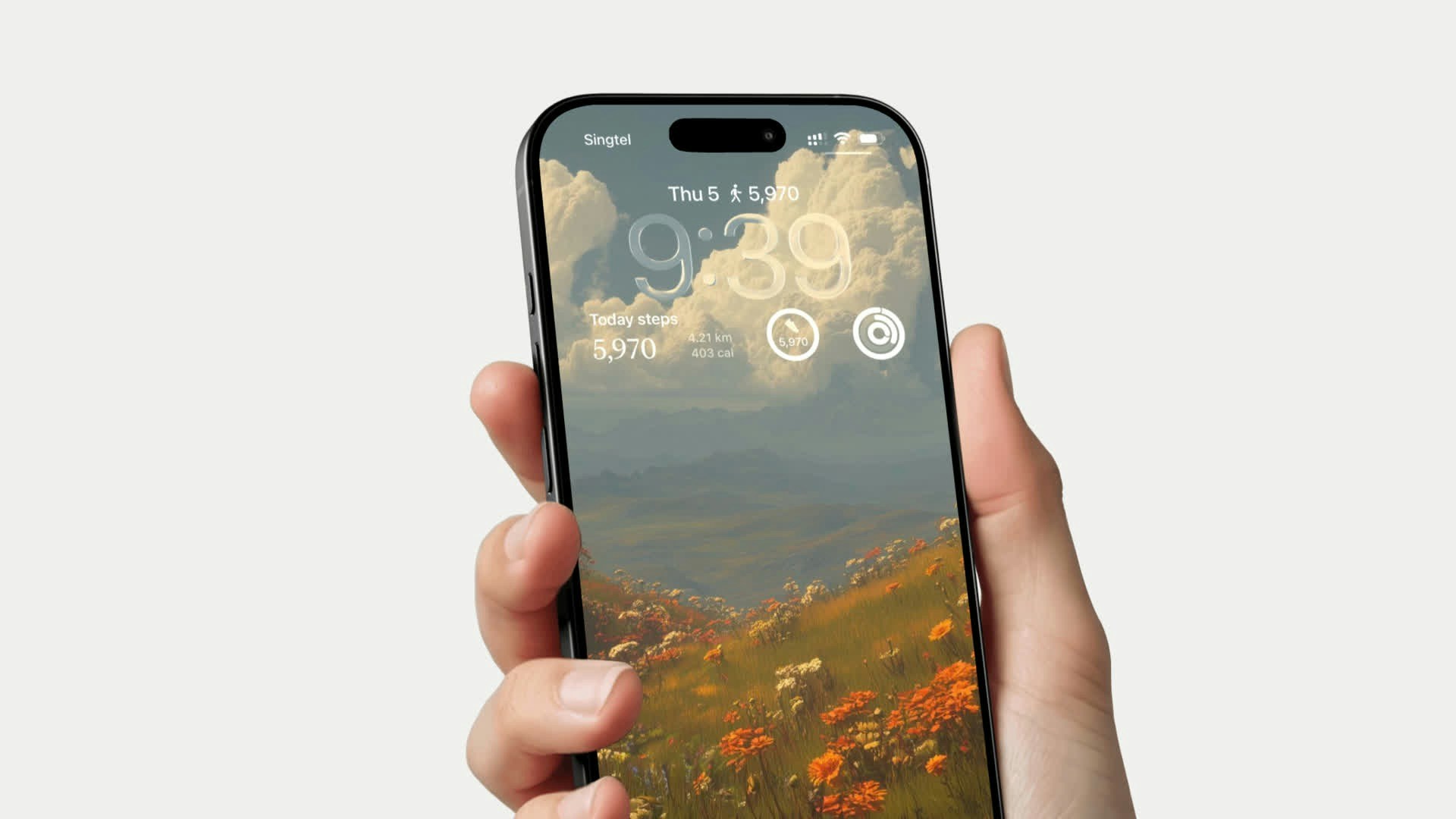
Steps Lock Screen widgets in three styles
- Rectangular - Shows step count and progress bar
- Inline - Compact step count in the date line
- Circular - Step count in a round gauge
Keeping Widgets Up to Date
For widgets to refresh frequently with your latest step data, Background App Refresh must be enabled for Steps.1
Open Settings
Go to Settings → General → Background App Refresh.
2
Enable Background App Refresh
Make sure the master toggle is set to Wi-Fi & Cellular Data (or at least Wi-Fi).
3
Enable for Steps
Scroll down and make sure the toggle next to Steps is turned on.