

Onboarding
When you first open Steps, you’ll go through a quick setup to personalize your experience: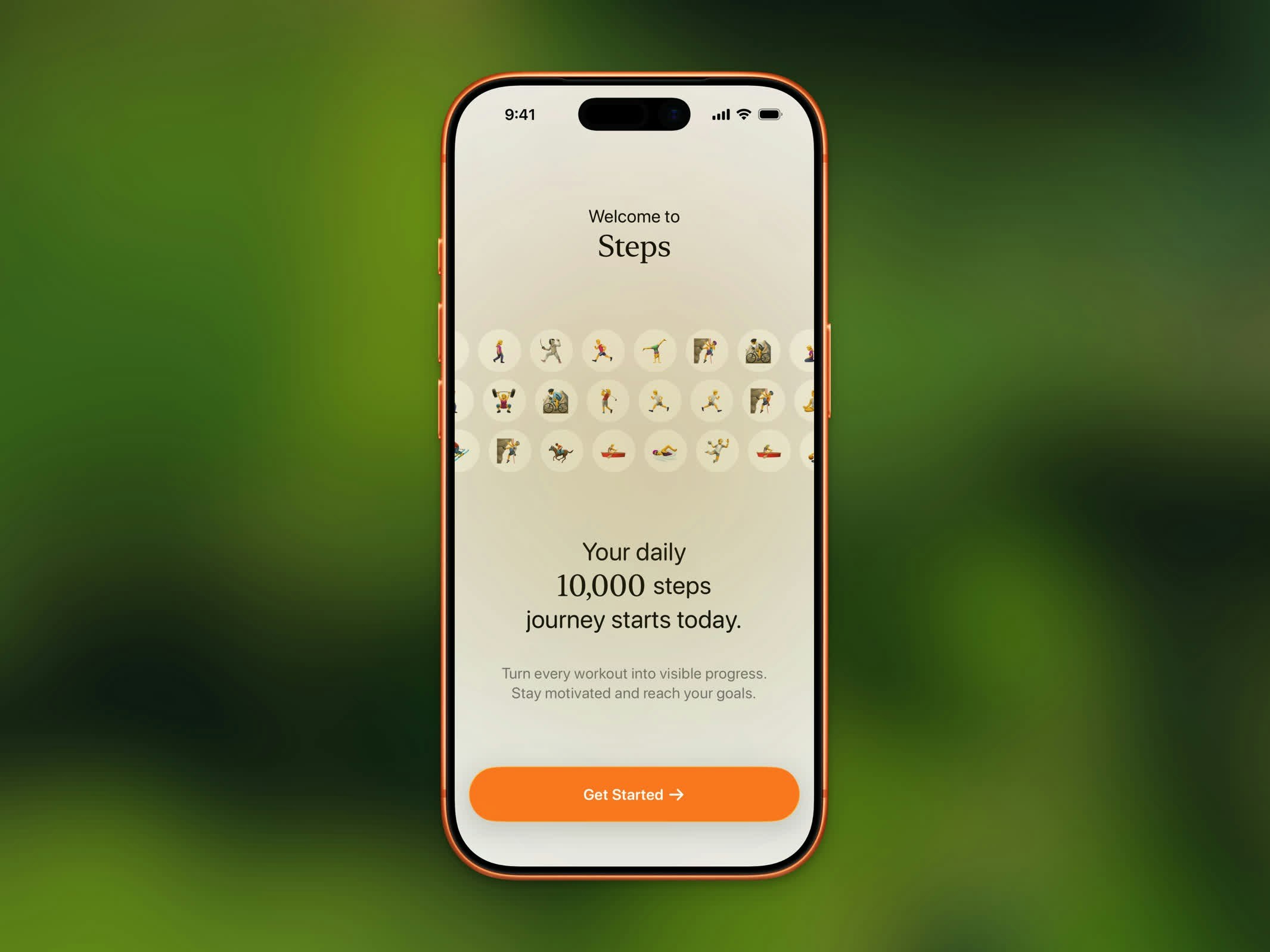
Steps onboarding flow
1
Set Your Daily Goal
Choose a step goal between 1,000 and 20,000 steps using the scroll picker. You can always change this later in Settings.
2
Grant Health Permissions
Steps requests access to Apple Health to read your step count, distance, calories, flights climbed, and workout data. Tap Allow All for the best experience.
3
Join the Stepboard
Sign in with Apple and join the daily leaderboard, or skip it and join later from Home. If you already have an account, the button matches that: Join Stepboard when you’re signed in, Continue when you’re already a member.
4
Start Walking
That’s it! Steps begins tracking automatically using your iPhone’s motion sensors and Apple Health data.
HealthKit Permissions
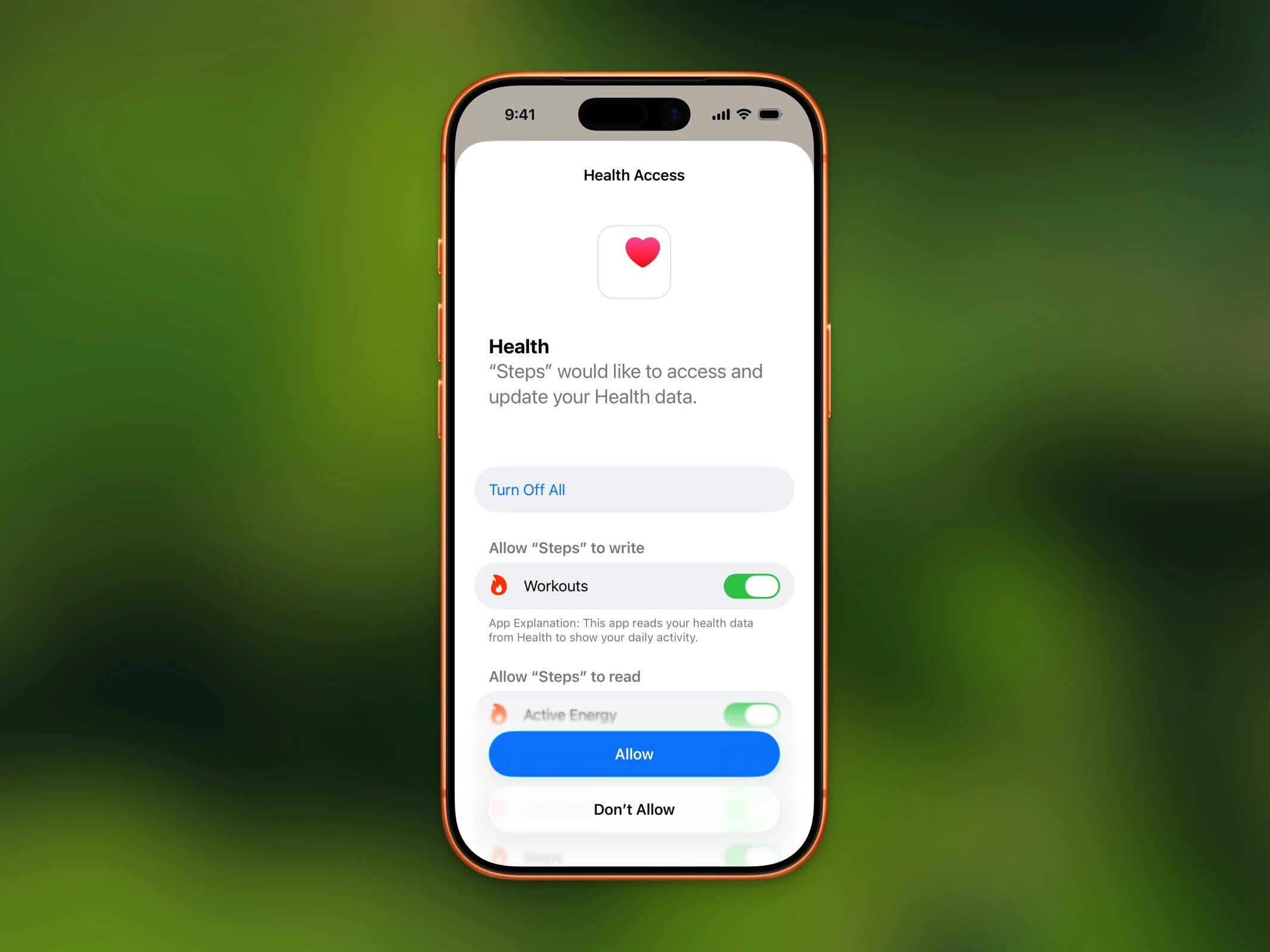
Apple Health permissions request
- Steps - Your daily step count
- Walking + Running Distance - Distance covered on foot
- Active Energy Burned - Calories burned through activity
- Flights Climbed - Floors you’ve climbed
- Heart Rate - Used during workouts, including your heart rate zones
- Workout Routes - GPS routes for your recorded workouts
- Workout Effort - The 1–10 rating you set on a workout
Privacy
Your health data stays on your device. Steps does not upload your fitness data to any server. All processing happens locally on your iPhone.Re-syncing Health Data
If your step count looks incorrect or data appears missing, you can re-sync from Apple Health:- Open Settings in Steps
- Scroll to the Support section
- Tap Re-sync Apple Health data
Restart Onboarding
To go through the setup flow again:- Open Settings in Steps
- Tap Restart Onboarding
- Confirm when prompted