

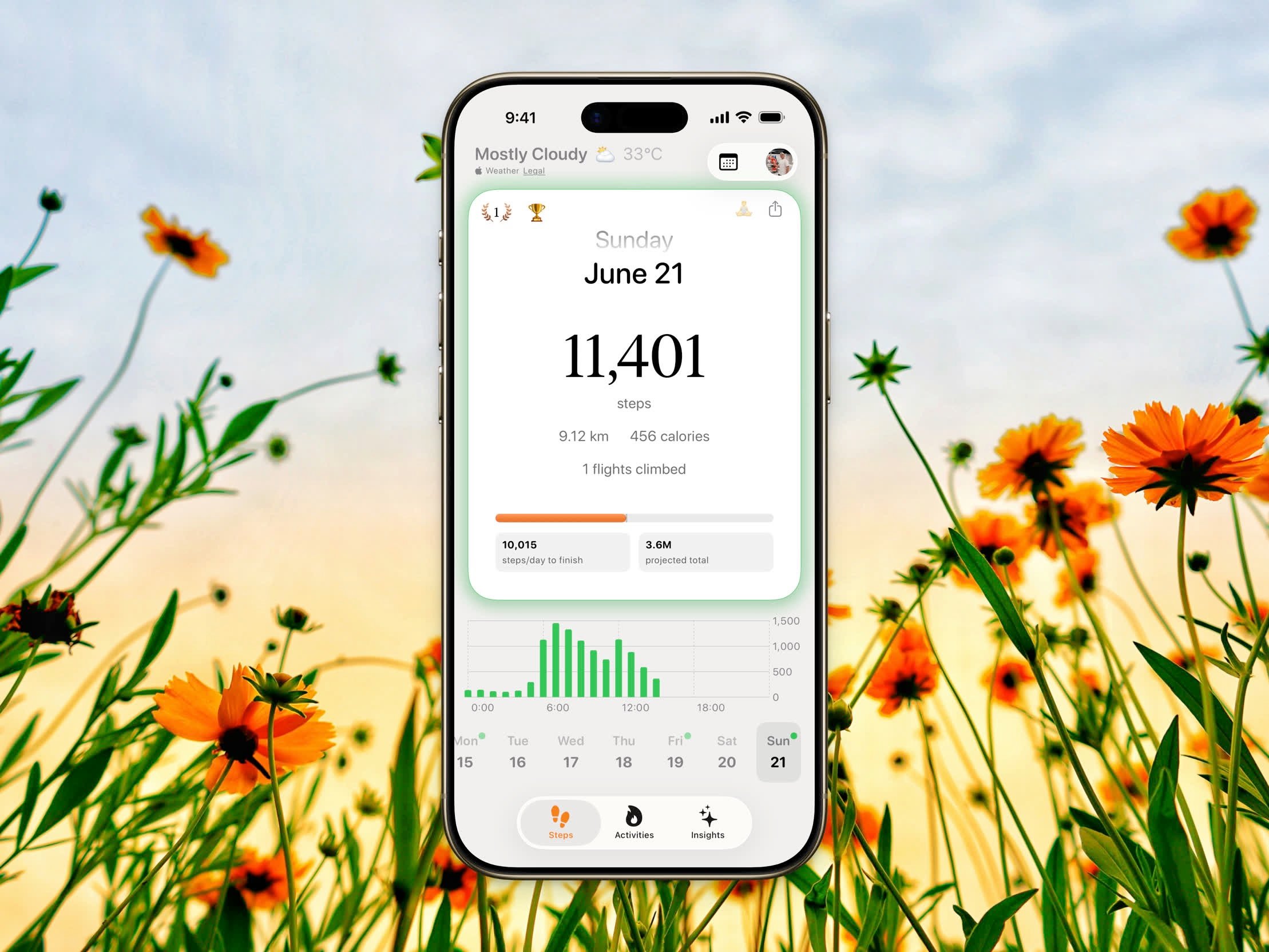
Home Dashboard with step count card, progress ring, and hourly chart
Step Count Card
The main card displays your current activity:- Step Count - Your total steps for the selected period
- Distance - Walking and running distance in km or miles
- Calories - Active energy burned
- Flights Climbed - Floors climbed (daily view only)
Streak Badge
Your current streak count appears in the top-left corner with a flame icon. Tap it to view your full streak details, heatmap, and badge progress.Stepboard
Tap the trophy emoji (🏆) near the top of the Home Dashboard to open the Stepboard — the daily leaderboard where you compete with the wider Steps community or your private groups. From the Stepboard you can also reach World Stats for community-wide totals and your global rank.Rest Day
Tap the 🧘 button in the top-right corner to mark today as a rest day, and tap again to remove it. Rest days pause your streak without breaking it. The button stays dimmed until the current day is marked as a rest day.Motivational Messages
You can choose what appears below your step count in Settings > Home insight:- Message - A motivational quote or encouragement
- Average - How your steps compare to your daily average
- Yearly Goal - Your progress toward your yearly step goal
- Off - Show nothing extra
- Last 30 days
- Last 3 months
- This year
- Last year
- All time
Home Layout
On iOS 26 and later, Settings > Home layout chooses how Home is arranged:
On an unfolded iPhone Duo, Home sits beside a History calendar. That calendar can show a week or a month, and each month in Activity keeps a sticky summary while the workout cards scroll.
Charts
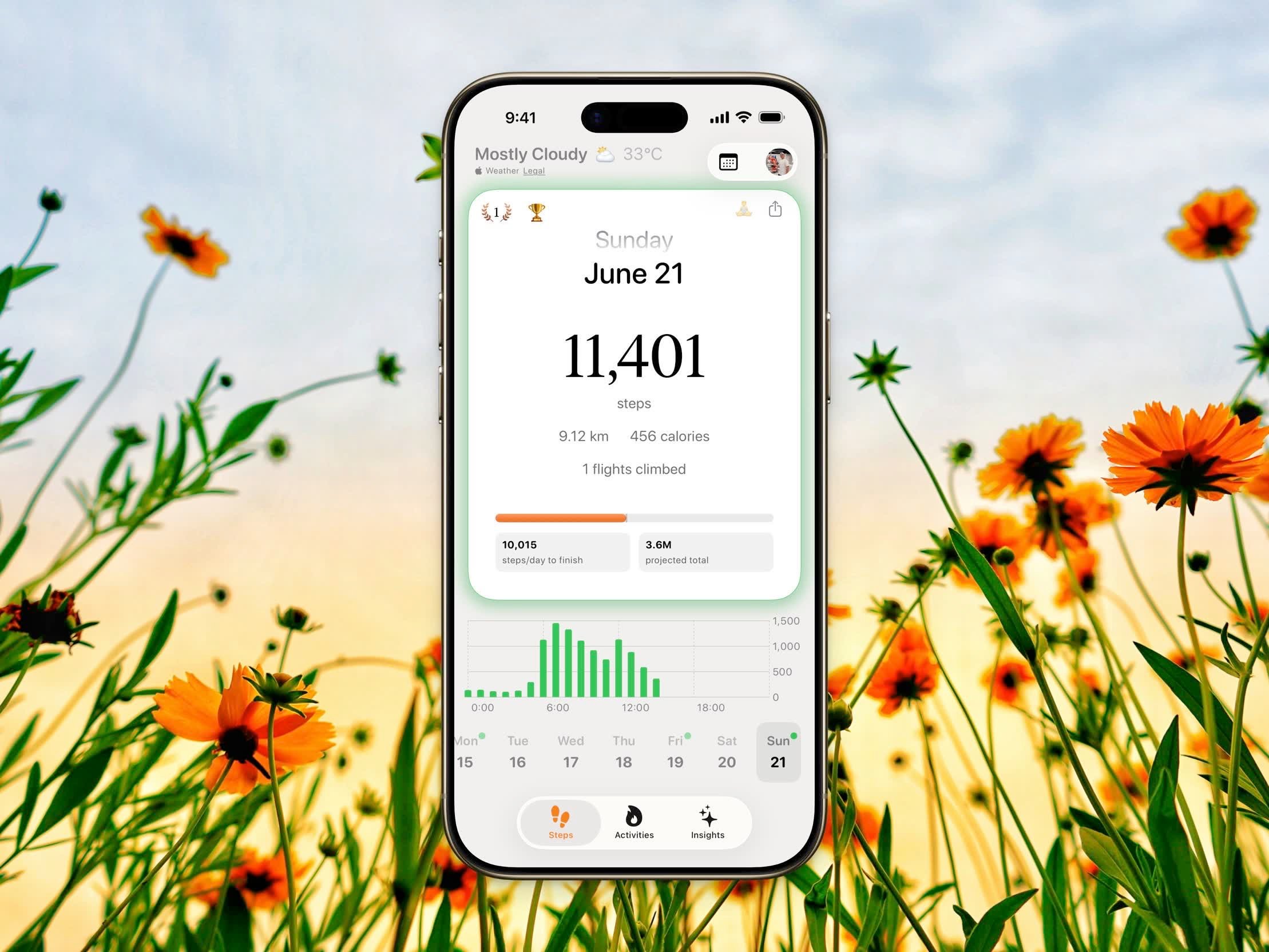
Hourly step chart on the Home Dashboard
Weekly and Monthly views are Pro features. You can switch between views in Settings > View steps by.