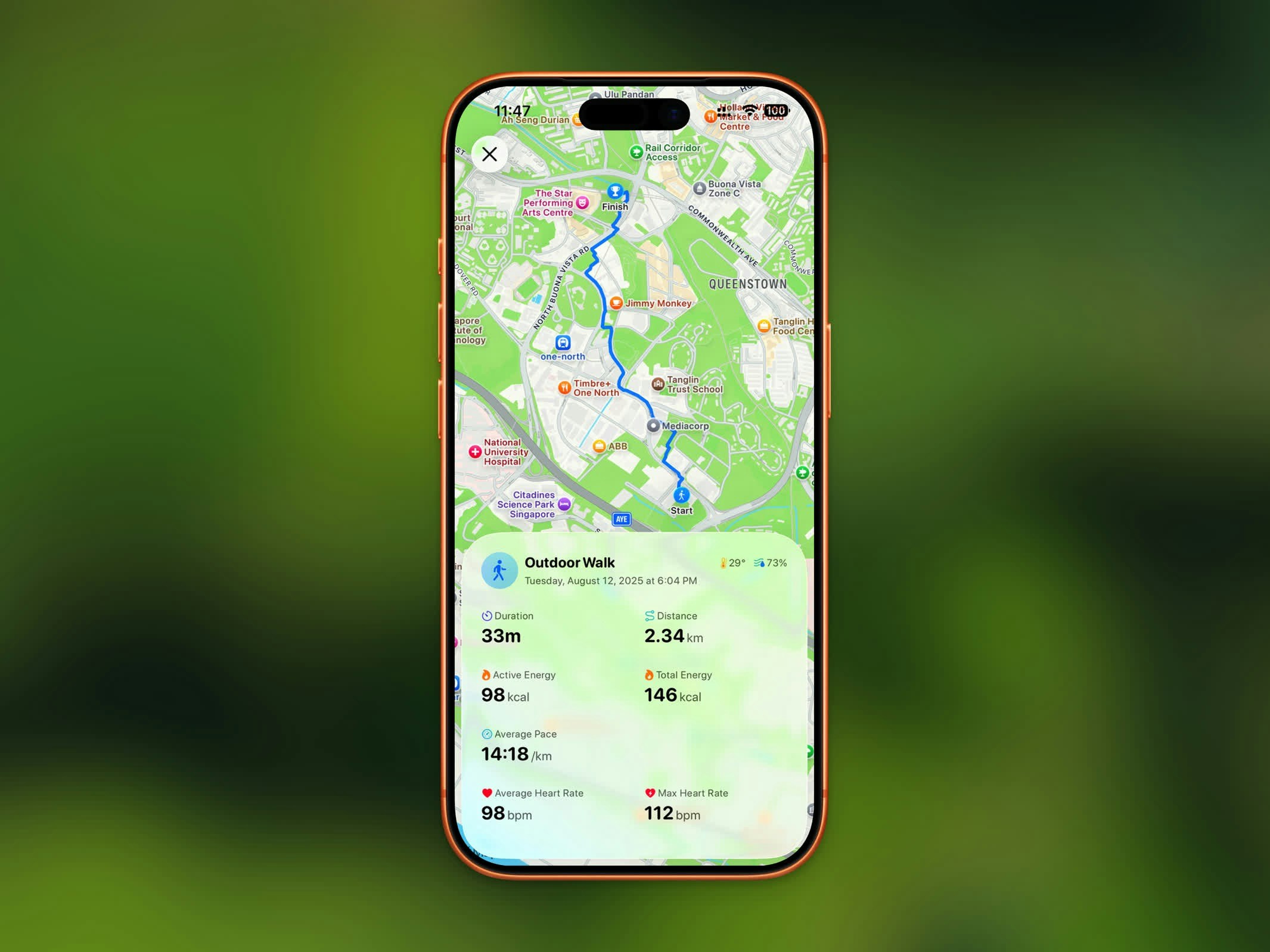
The Activity Detail view gives you a complete breakdown of any recorded workout, including your route, stats, and sharing options.
Route Map
For outdoor workouts, a map displays your GPS route drawn in the workout’s color. You can switch between:
- Standard map view
- Satellite imagery view
Workout Stats
Every workout detail view shows:
- Duration - Total workout time
- Distance - Total distance covered
- Pace - Average pace (for walking and running)
- Elevation Gain - Total climb during the workout
- Heart Rate - Average and max heart rate
- Calories - Active energy burned
- Weather - Temperature and humidity during the workout
Heart Rate & Zones
When a workout has heart rate data, the Heart Rate section shows your average and max along with a chart of your heart rate over the session.
Below the chart, the Time in Zones breakdown shows how long you spent in each of five heart rate zones, from easy effort to maximum effort:
| Zone | Effort |
|---|
| Zone 1 | Very light |
| Zone 2 | Light |
| Zone 3 | Moderate |
| Zone 4 | Hard |
| Zone 5 | Maximum |
Splits
For distance-based workouts, the Splits table breaks your workout down by distance — one row per kilometer or mile, depending on your unit setting. Each split shows:
- Pace (or Speed for cycling)
- Time — Cumulative elapsed time at the end of the split
- HR — Average heart rate for the split, when available
A bar next to each split makes it easy to compare your fastest and slowest segments at a glance.
Route Playback
Route playback is a Pro feature.
Sharing Your Workout
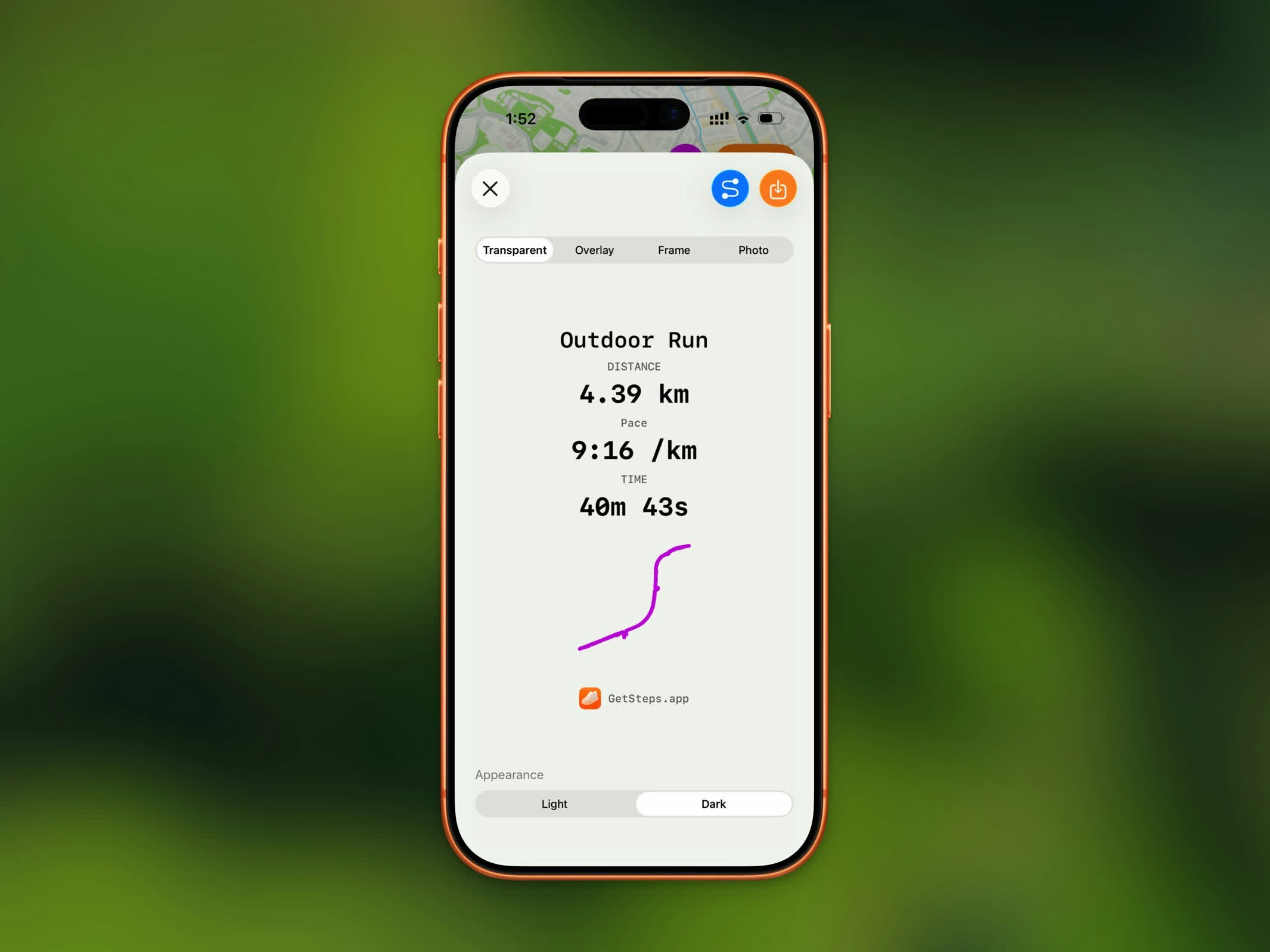
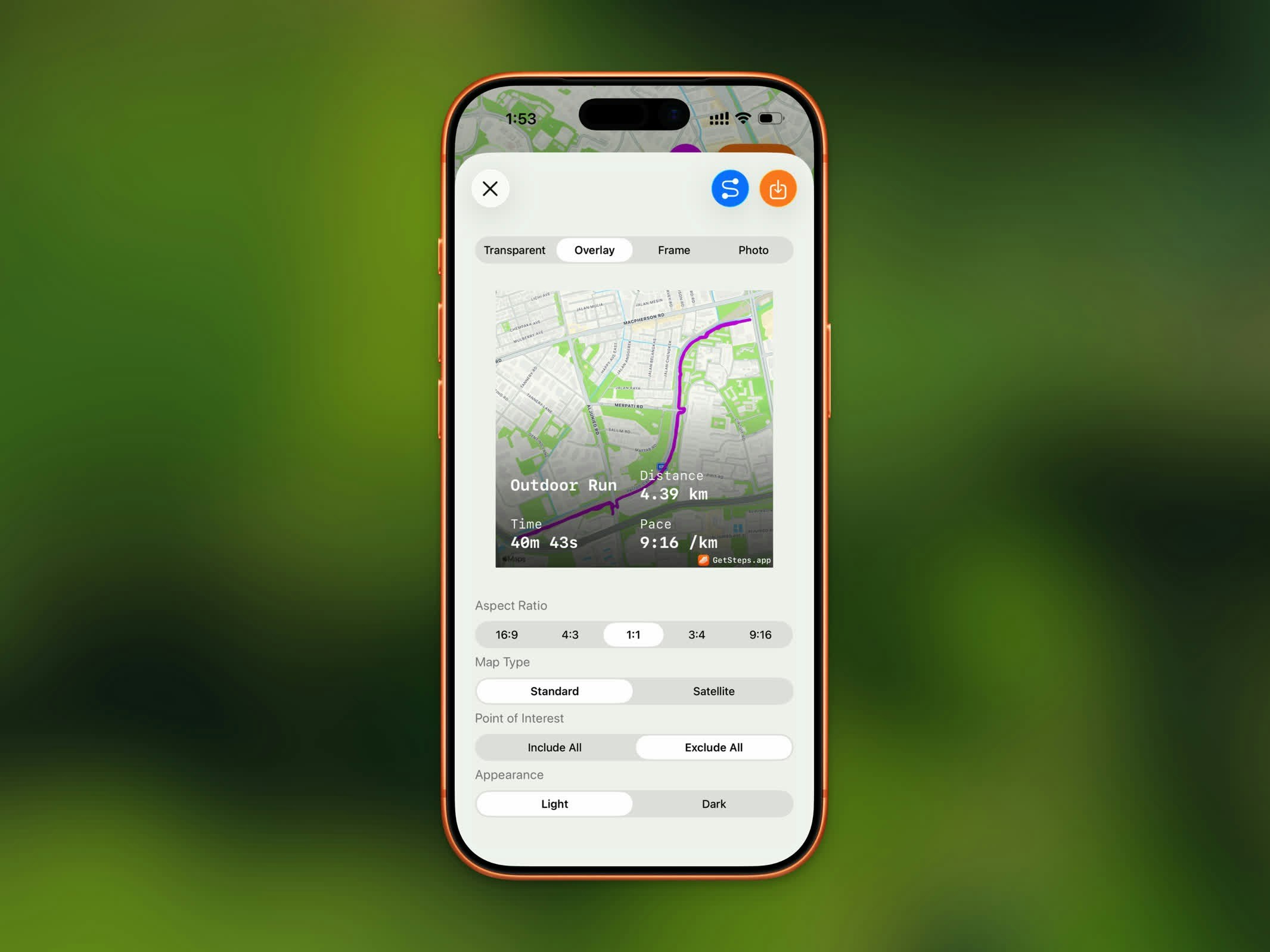
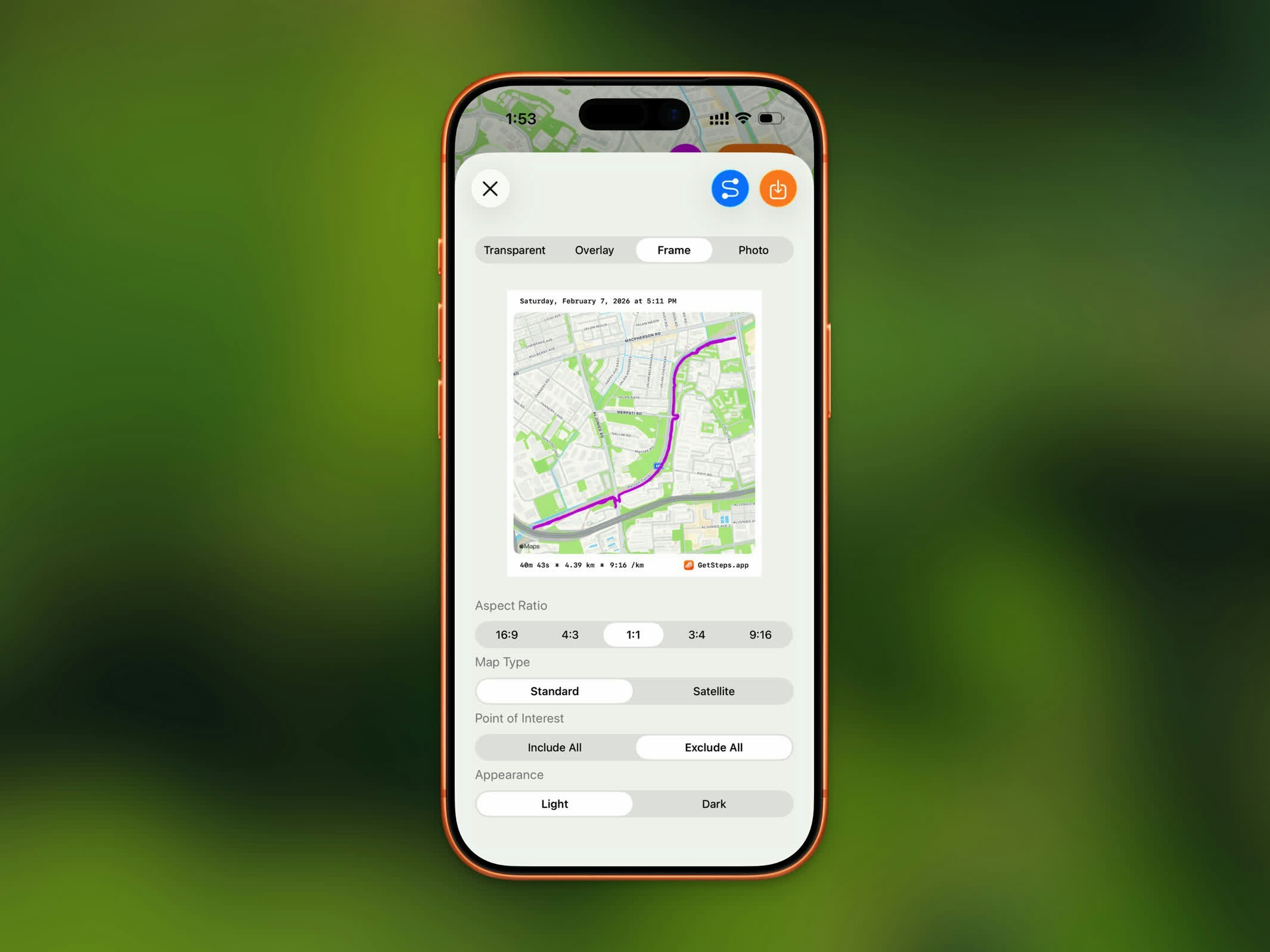
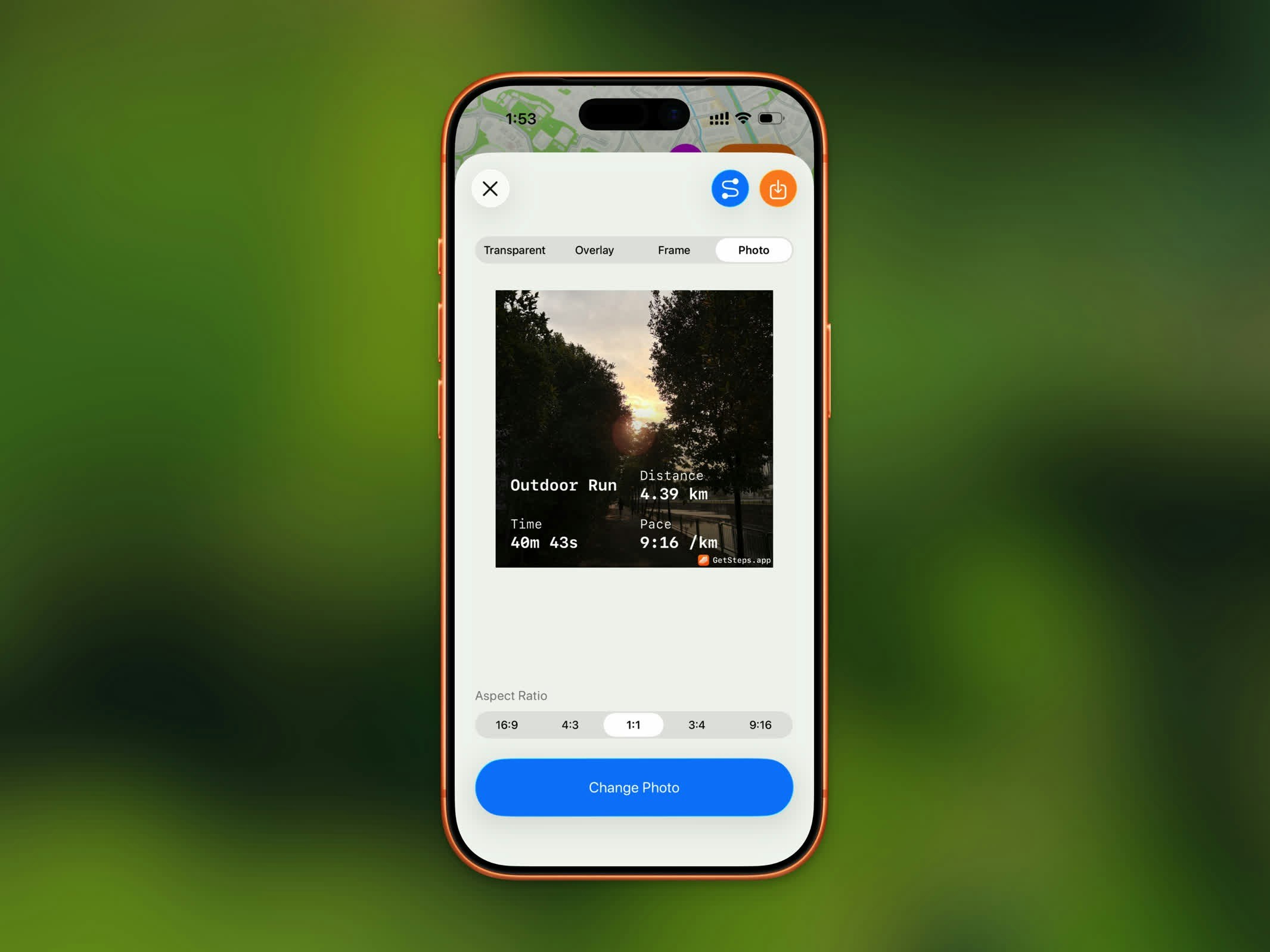
Share your workout as a styled image. Steps offers four share styles:
Transparent
Overlay
Frame
Photo
| Style | Description |
|---|
| Transparent | Stats on a transparent background |
| Overlay | Stats overlaid on your route map |
| Frame | Route map with a bordered stats frame |
| Photo | Stats overlaid on a photo from your library |
GPX Export
GPX export is a Pro feature.
.gpx file to use in other fitness apps or mapping tools. Tap the share button and select GPX export to save or send the file.
Deleting a Workout
To remove a workout, tap the menu button (⋯) in the top-right corner and choose Delete. You’ll be asked to confirm, since this removes the workout from both Steps and Apple Health.
Deleting a workout removes it from Apple Health as well, and it can’t be undone.