App Lock: Block Distracting Apps Until You Hit Your Step Goal
Discover how App Lock in Steps uses Screen Time to block social media and distracting apps until you reach your daily step goal. Walk more, scroll less.
 Hieu Dinh•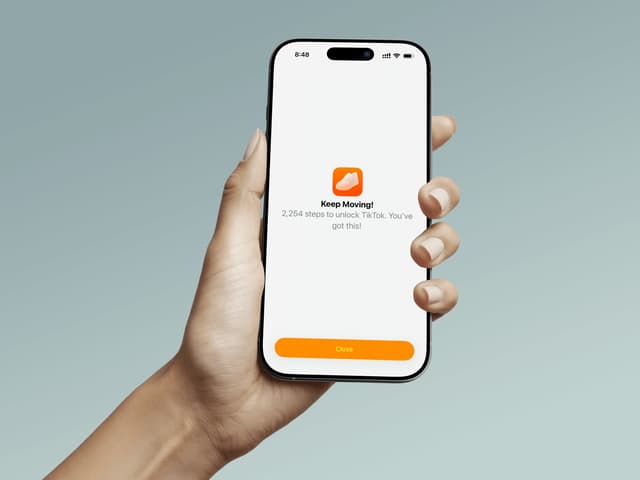
App Lock: Block Distracting Apps Until You Hit Your Step Goal
You set a step goal every morning. By noon, you've barely moved—but you've scrolled through Instagram twice. Sound familiar? App Lock fixes that. It blocks the apps you choose until you've earned them by reaching your daily step goal.
How App Lock Works
App Lock uses Apple's Screen Time framework to put a real barrier between you and your most distracting apps. Here's the flow:
- Choose your apps — Pick which apps to lock (social media, games, news, anything)
- Walk to unlock — Those apps stay blocked behind a shield until you hit your daily step goal
- Unlock automatically — The moment you reach your goal, the shields come off and your apps are free
- Reset at midnight — Every day starts fresh with a new challenge
It's that simple. No willpower required—just steps.
Why It Works
Most screen time tools rely on you choosing to stop. That doesn't work. App Lock flips the script: instead of limiting something you enjoy, it makes you earn it.
The Psychology Behind It
- Reward-based motivation — Your favorite apps become the reward, not the enemy
- Loss aversion — You feel the absence of blocked apps, which drives action
- Clear goal — There's no ambiguity about what you need to do
- Immediate payoff — Hit your goal, get your apps. No waiting.
Real Results
People who tie screen time to physical activity consistently walk more. When checking TikTok requires 8,000 steps first, you find reasons to take the stairs, walk to lunch, or add an evening stroll.
Setting Up App Lock
Getting started takes about 30 seconds:
- Open Steps and go to Settings
- Tap App Lock
- Toggle it on (requires Steps Pro)
- Grant Screen Time permission when prompted
- Tap Select Apps and choose which apps to block
- You're done—shields are active immediately
Choosing the Right Apps
Be strategic about which apps you lock:
- High-distraction apps — Social media, short-form video, news feeds
- Time sinks — Games, streaming apps, Reddit
- Guilt-free exclusions — Keep essential apps like messaging, maps, and banking unlocked
You can update your selection anytime. Start with 2-3 apps and adjust from there.
What the Shield Looks Like
When you try to open a locked app, you'll see a motivational shield instead of the app. It shows:
- Your current step progress toward the goal
- How many steps you have left
- Encouraging messages that change as you get closer
At under 25% progress, you'll see how many steps remain. Past halfway, the shield cheers you on. At 75%+, it tells you you're almost there. It's designed to motivate, not frustrate.
Smart Features
One-Way Unlock
Once you hit your step goal, apps stay unlocked for the rest of the day. Even if you change your step goal to a higher number after unlocking, your apps won't re-lock. No gotchas.
Midnight Reset
At midnight, everything resets automatically. Shields go back up, and you start a new day with a fresh goal. This happens even if the Steps app isn't running—it's handled by the system in the background.
Goal Integration
App Lock uses the same step goal you've already set in Steps. Change your goal, and App Lock adjusts immediately. If you lower your goal below your current steps, the apps unlock right away.
Unlock Notification
The moment you hit your step goal, you'll get a notification letting you know your apps are unlocked. It's a small celebration that reinforces the habit.
Frequently Asked Questions
Does App Lock drain battery?
No. App Lock uses Apple's built-in Screen Time framework, which runs at the system level with minimal battery impact. Steps monitors your step count in the background as it normally does.
Can I bypass the lock?
The shield has a dismiss button, but the app remains blocked. You'd need to disable App Lock entirely in Settings to remove the shields—which is an intentional friction point that helps you stick to your goal.
Does it work offline?
Yes. Step counting uses your iPhone's motion processor and doesn't require internet. Shields are managed locally by the operating system.
Is App Lock included in Steps Pro?
Yes, App Lock is a Pro feature. It requires a Steps Pro subscription to enable.
What happens if I uninstall Steps?
The shields will remain until you either reinstall Steps and disable App Lock, or manually remove the restrictions in your iPhone's Screen Time settings.
Walk More, Scroll Less
App Lock turns your step goal from a number you ignore into a gate you need to pass. It's the simplest way to build a walking habit: make the thing you already want to do (check your phone) require the thing you should do (walk).
Try it today. Set your goal, lock your apps, and see how quickly those steps add up when there's something real on the other side.
Download Steps from the App Store and enable App Lock in Settings to get started.
Steps is built by runners who wanted a step counter that felt right. Read our story