8 Best Step Counter Widgets for iPhone Home Screen [2026 Tested]
We tested every step counter widget for iPhone. Here are the 8 best widgets ranked by design, accuracy, and features — with setup guides and real screenshots.
 Hieu Dinh•
![8 Best Step Counter Widgets for iPhone Home Screen [2026 Tested]](/_next/image?url=%2Fblog%2Fstep-counter-widgets-iphone.jpg&w=640&q=75)
8 Best Step Counter Widgets for iPhone Home Screen [2026 Tested]
A step counter widget transforms how you track your daily activity. Instead of opening an app to check your progress, your steps are right there on your home screen—visible every time you unlock your phone. The right widget keeps you motivated and accountable without any extra effort.
Why Step Counter Widgets Matter
Widgets aren't just convenient—they're psychologically powerful:
- Constant visibility creates awareness of your activity level
- Progress visualization motivates you to reach your goal
- Reduced friction means you actually check your steps
- Habit reinforcement keeps fitness top of mind
Studies show that people who see their step count regularly walk 23% more than those who only check occasionally.
Types of Step Counter Widgets
Not all step counter widgets are created equal. Here are the main types you'll find:
1. Simple Count Widgets
Display just the number—clean and minimal.
Best for: People who want quick info without distraction
Typical sizes: Small (2x2)
2. Progress Ring Widgets
Show your steps as a circular progress indicator filling toward your goal.
Best for: Visual learners who like seeing percentage complete
Typical sizes: Small (2x2), Medium (4x2)
3. Chart Widgets
Display your step history as a bar or line chart.
Best for: People who want to see trends and patterns
Typical sizes: Medium (4x2), Large (4x4)
4. Calendar Widgets
Show an entire month with color-coded days based on goal completion.
Best for: Tracking consistency over time
Typical sizes: Medium (4x2), Large (4x4)
5. Streak Widgets
Highlight your current consecutive days of hitting your goal.
Best for: Motivation through gamification
Typical sizes: Small (2x2)
The 8 Widgets in Steps: Workout & Pedometer
The Steps app offers 8 different widget types—more variety than any other step counter:
Today Step Count Widget
The essential widget. Shows your current step count with a progress ring toward your daily goal.
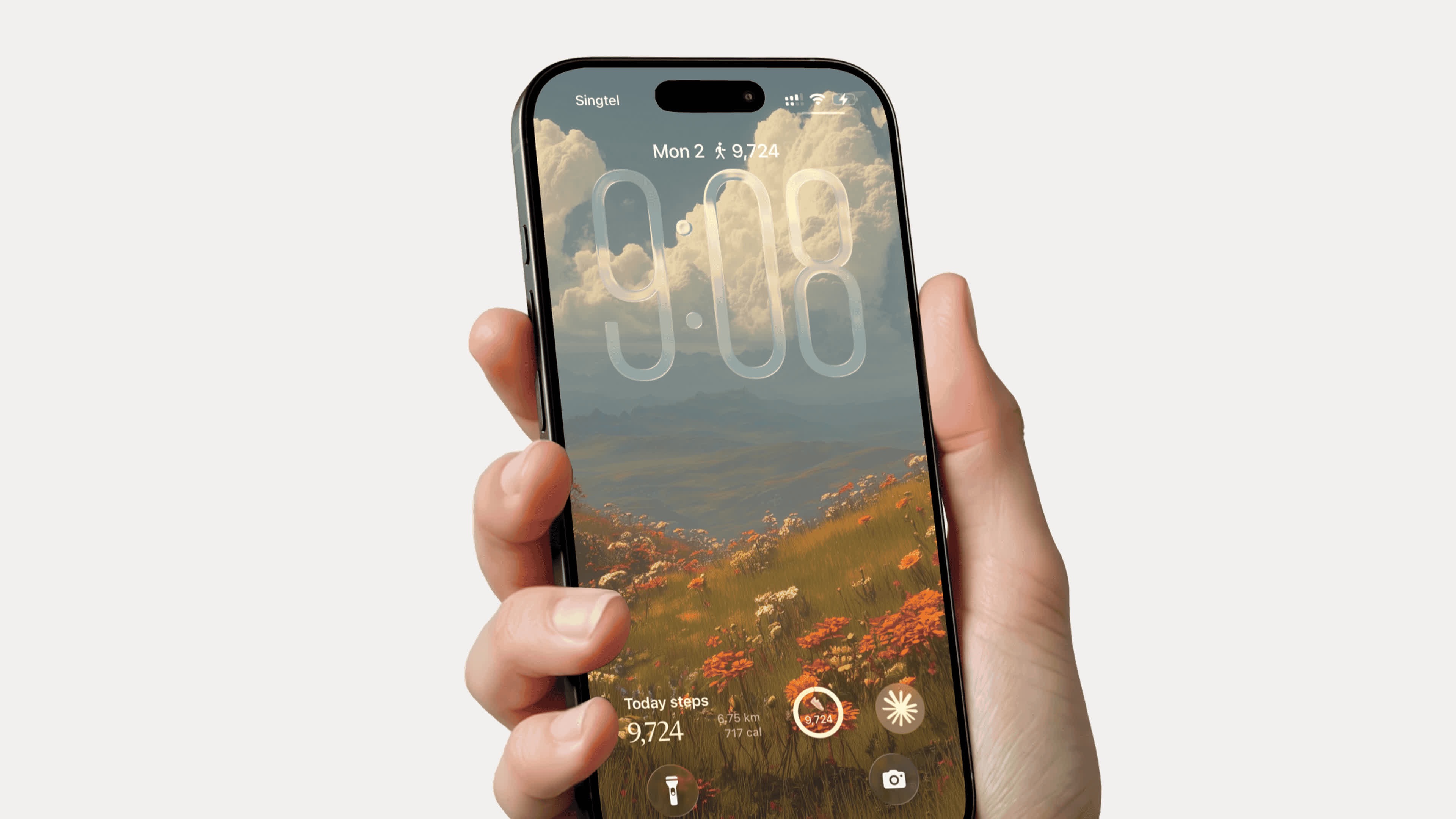
Sizes available: Small, Medium
Shows:
- Current step count
- Progress percentage
- Goal target
Hourly Step Chart Widget
See how your steps break down throughout the day. Identify your most active hours.
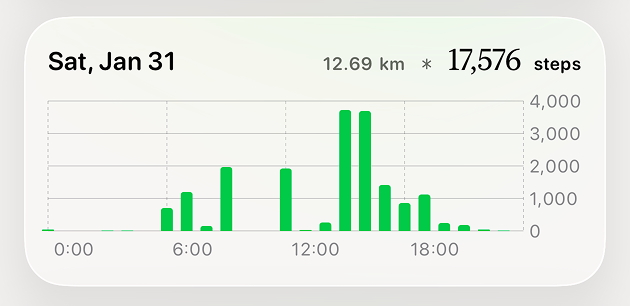
Sizes available: Medium, Large
Shows:
- Hour-by-hour step bars
- Peak activity times
- Current hour highlighted
Weekly Step Chart Widget
Compare your daily steps across the week. Perfect for spotting patterns.
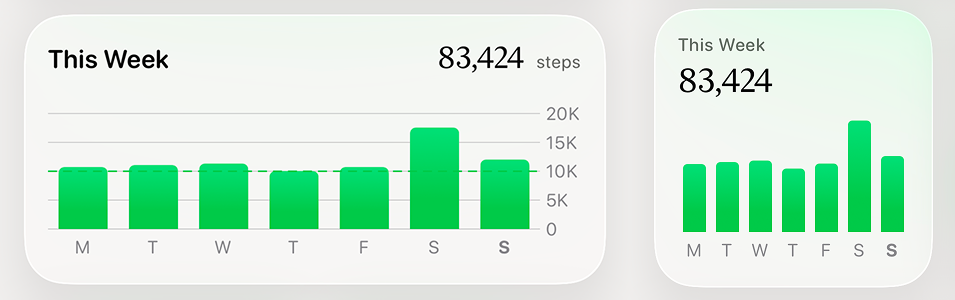
Sizes available: Medium, Large
Shows:
- 7-day bar chart
- Daily totals
- Weekly average
Monthly Step Chart Widget
The big picture view. See your entire month of activity at once.
Sizes available: Large
Shows:
- 30-day trend line
- Monthly total
- Average daily steps
Monthly Calendar Widget
A month-view calendar with color-coded days showing goal achievement.
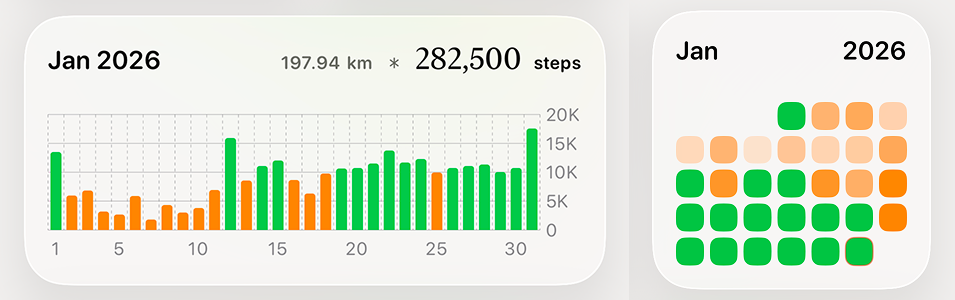
Sizes available: Medium, Large
Shows:
- Full month grid
- Green days (goal met)
- Progress for current day
Yearly Calendar Widget
See your entire year of step data in a GitHub-style contribution graph.
Sizes available: Large
Shows:
- 365-day heat map
- Activity intensity by color
- Yearly patterns at a glance
Streak Widget
Your current streak front and center. How many days in a row have you hit your goal?
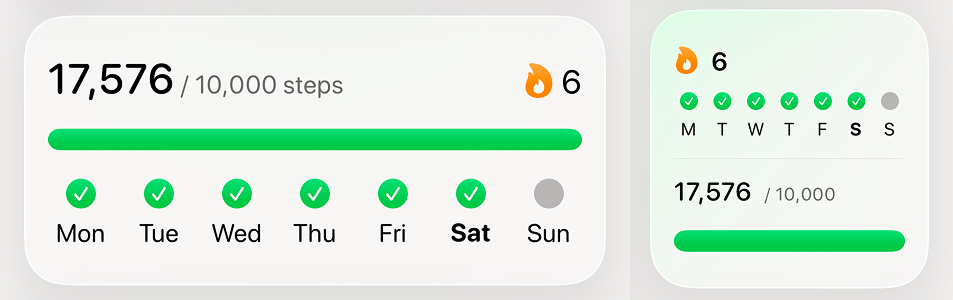
Sizes available: Small
Shows:
- Current streak count
- Streak status (active/broken)
- Motivational messaging
Workout Highlights Widget
Showcases your recent workout achievements—not just steps, but runs, hikes, and more.
Sizes available: Medium
Shows:
- Recent workout stats
- Distance and duration
- Workout type icons
How to Add Step Counter Widgets
Adding Widgets on iPhone
- Long press on your home screen until apps jiggle
- Tap the + button in the top corner
- Search for "Steps" or scroll to find it
- Browse available widget sizes
- Tap Add Widget
- Drag to position and tap Done
Widget Placement Tips
- Above the dock — Most visible, see it every unlock
- Dedicated fitness page — Group with other health widgets
- Lock screen — iOS 16+ allows lock screen widgets
- Smart Stack — Combine with other widgets, swipe to reveal
Comparing Step Counter Widget Apps
| App | Widget Types | Sizes | Customization | Free |
|---|---|---|---|---|
| Steps | 8 | S/M/L | High | Yes |
| Pedometer++ | 3 | S/M | Low | Yes |
| StepsApp | 4 | S/M | Medium | Limited |
| Apple Fitness | 2 | S/M | None | Yes |
| Pacer | 3 | S/M | Low | Limited |
Steps offers the most widget variety with 8 distinct types across all sizes, giving you more ways to visualize your activity.
Choosing the Right Widget Setup
For Minimalists
Use a single small Today widget:
- Clean, unobtrusive
- Shows what matters: current count and progress
- Takes minimal home screen space
For Data Lovers
Combine medium weekly chart + small streak:
- See trends and patterns
- Track consistency with streak
- Balanced information density
For Maximum Motivation
Use large monthly calendar + small Today widget:
- Visual accountability with calendar
- Current progress always visible
- Green days create satisfaction
For Fitness Enthusiasts
Add workout highlights + hourly chart:
- Track more than just steps
- Optimize your active hours
- Comprehensive activity view
Widget Customization Tips
Match Your Aesthetic
Steps widgets adapt to your iPhone's appearance:
- Light mode — Clean white backgrounds
- Dark mode — Easy on eyes at night
- System setting — Automatic switching
Consider Widget Stacks
Create a Smart Stack with multiple step widgets:
- Swipe to see different views
- iOS intelligently shows relevant widgets
- Save space while having options
Lock Screen Widgets (iOS 16+)
Add step count to your lock screen:
- See steps without unlocking
- Quick glance motivation
- Pairs with watch complications
Common Questions
Do step counter widgets drain battery?
Minimal impact. Widgets refresh periodically (usually every 15-30 minutes) and use negligible battery. The convenience far outweighs the tiny energy cost.
Why isn't my widget updating?
Try these fixes:
- Wait a few minutes — Widgets don't update in real-time
- Open the app — Forces a data refresh
- Remove and re-add — Resets the widget connection
- Check permissions — Ensure Health access is enabled
Can I see steps on my lock screen?
Yes, on iOS 16 and later. Add a Steps lock screen widget to see your count without unlocking. Some apps also support Live Activities for real-time updates.
Do widgets work without Apple Watch?
Absolutely. Widgets display step data from your iPhone's motion sensors. Apple Watch adds accuracy but isn't required.
Which widget size is best?
Depends on your preference:
- Small — Quick number check, minimal space
- Medium — Good balance of info and size
- Large — Detailed charts and calendars
Can I have multiple step widgets?
Yes. Add as many as you want across different home screen pages or in widget stacks.
Why Steps Has the Best Widgets
With 8 widget types, Steps offers unmatched variety:
- Every visualization style — Numbers, rings, charts, calendars
- All three sizes — Small, medium, and large options
- Unique offerings — Yearly calendar and workout highlights
- Beautiful design — Clean, modern aesthetic
- Smart updates — Efficient refresh without battery drain
- Free access — Most widgets available without subscription
Get Started with Step Counter Widgets
Transform your home screen into a fitness dashboard. With the right widgets, you'll never wonder how close you are to your goal—the answer is always one glance away.
Steps makes it easy:
- Download from the App Store
- Grant Health permissions
- Add your preferred widgets
- Watch your motivation increase
Ready to see your steps at a glance? Download Steps and add beautiful widgets to your iPhone home screen today.
Try Our Calculators
Steps is built by runners who wanted a step counter that felt right. Read our story