> ## Documentation Index
> Fetch the complete documentation index at: https://getsteps.app/docs/llms.txt
> Use this file to discover all available pages before exploring further.
# Widgets
> Home Screen, Lock Screen, and Live Activity widgets for at-a-glance step tracking
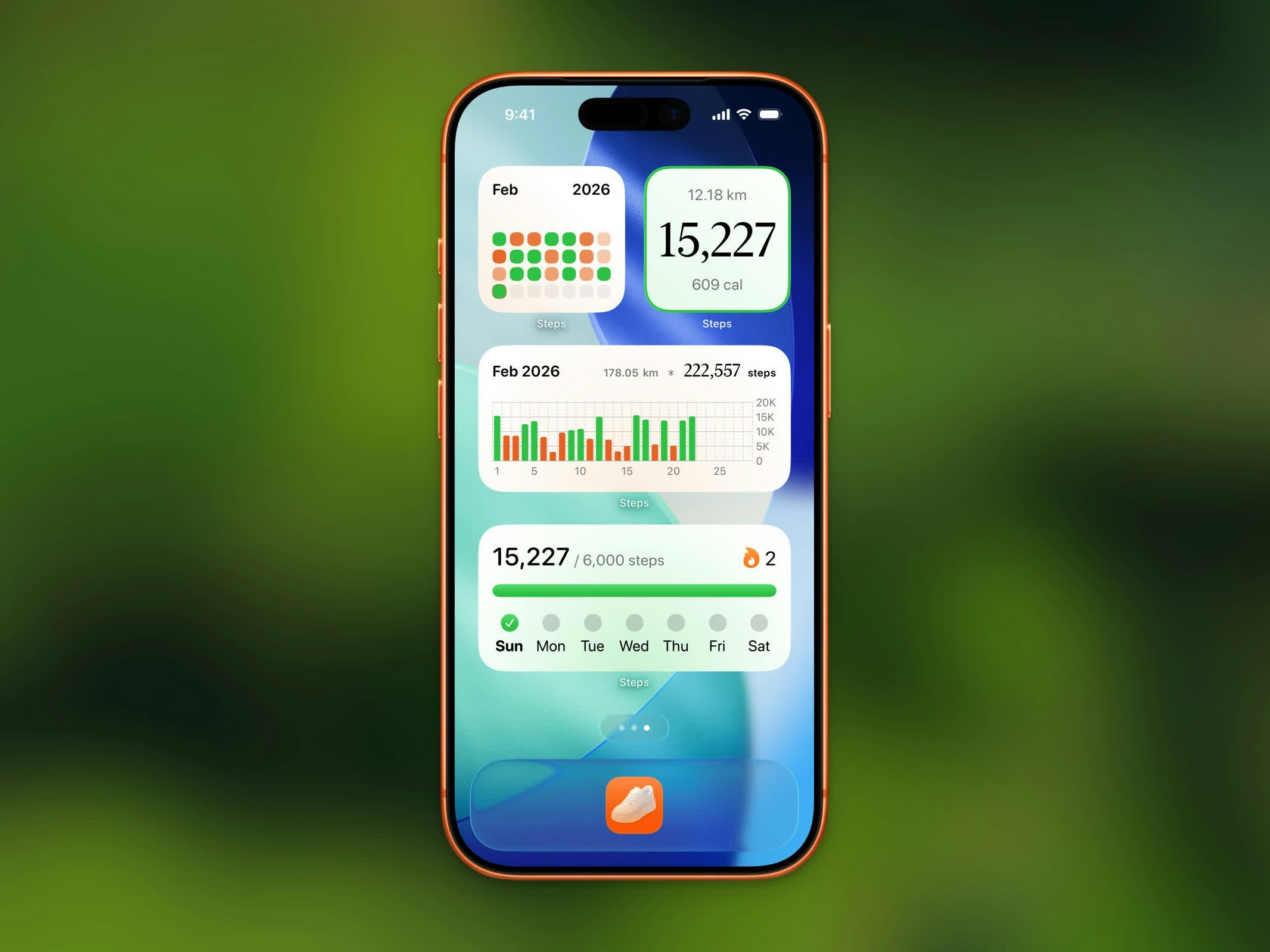
Steps offers a variety of widgets so you can see your step count, streaks, and workout data without opening the app.
## Widget Types
 | Widget | Sizes | Description |
| ---------------------- | -------------------------------------------------- | ----------------------------------------------------------- |
| **Today Steps** | Small, Lock Screen (rectangular, inline, circular) | Current step count and goal progress |
| **Monthly Calendar** | Medium | Calendar grid showing daily goal completion for the month |
| **Yearly Calendar** | Medium, Large | Year-at-a-glance calendar with goal completion heatmap |
| **Yearly Goal** | Small, Medium | Progress toward your yearly step goal with status and stats |
| **Hourly Chart** | Medium | Bar chart of steps by hour for today |
| **Weekly Chart** | Medium | Bar chart of steps for the past 7 days |
| **Monthly Chart** | Medium | Bar chart of steps for the current month |
| **Streak** | Small, Medium | Current streak count and weekly goal progress |
| **Workout Highlights** | Small | Your most recent workout stats |
| **Stepboard Ranking** | Small | Today's top 5 on the leaderboard plus your rank |
| **Start Workout** | Small, Medium | Jump straight into a workout type with one tap |
## Stepboard Ranking Widget
| Widget | Sizes | Description |
| ---------------------- | -------------------------------------------------- | ----------------------------------------------------------- |
| **Today Steps** | Small, Lock Screen (rectangular, inline, circular) | Current step count and goal progress |
| **Monthly Calendar** | Medium | Calendar grid showing daily goal completion for the month |
| **Yearly Calendar** | Medium, Large | Year-at-a-glance calendar with goal completion heatmap |
| **Yearly Goal** | Small, Medium | Progress toward your yearly step goal with status and stats |
| **Hourly Chart** | Medium | Bar chart of steps by hour for today |
| **Weekly Chart** | Medium | Bar chart of steps for the past 7 days |
| **Monthly Chart** | Medium | Bar chart of steps for the current month |
| **Streak** | Small, Medium | Current streak count and weekly goal progress |
| **Workout Highlights** | Small | Your most recent workout stats |
| **Stepboard Ranking** | Small | Today's top 5 on the leaderboard plus your rank |
| **Start Workout** | Small, Medium | Jump straight into a workout type with one tap |
## Stepboard Ranking Widget
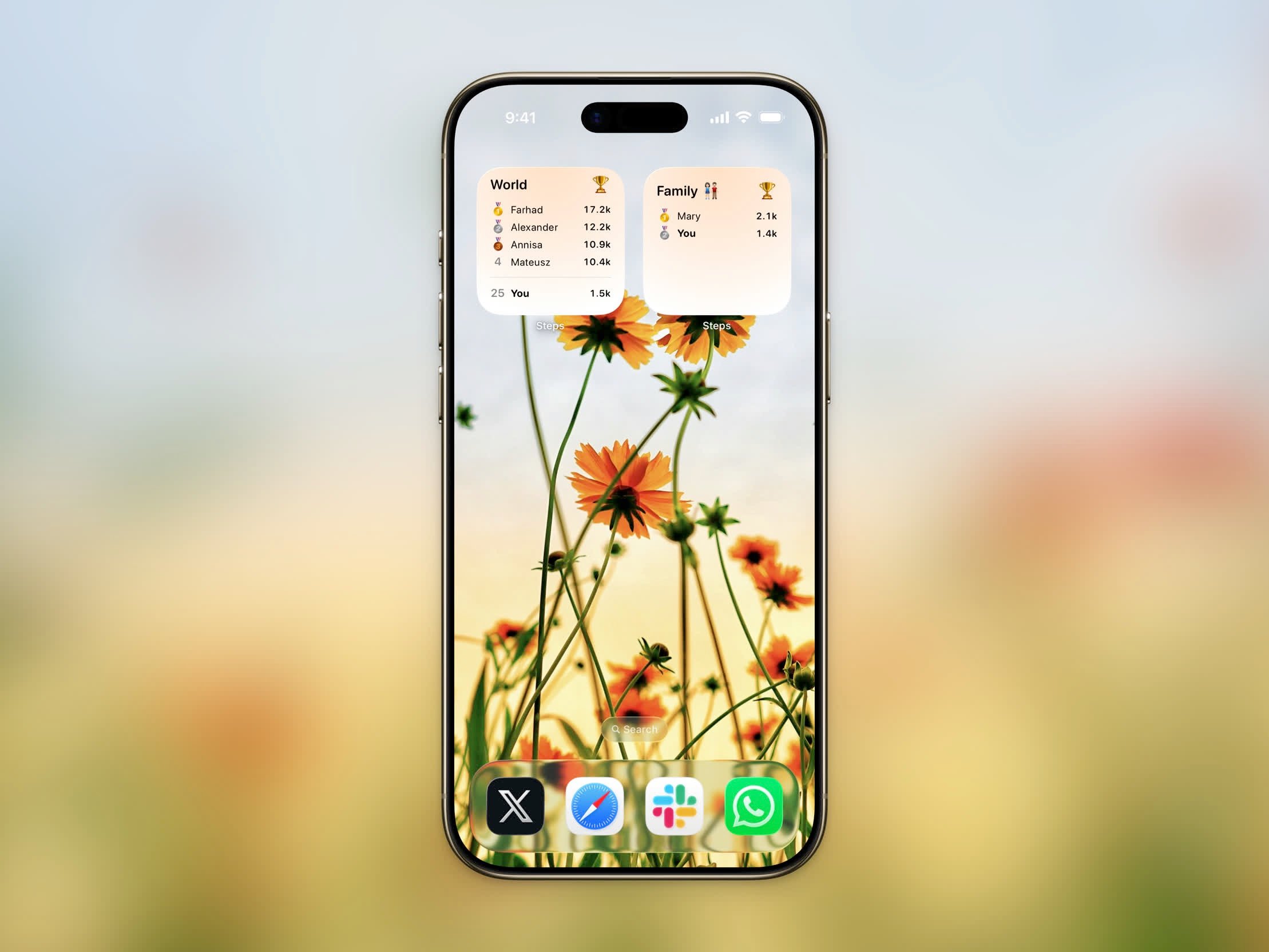 The Stepboard Ranking widget puts your [Stepboard](/features/stepboard) on your Home Screen. It shows today's top 5 walkers with medal emojis for the leaders, plus your own rank if you're outside the top 5. When you add the widget, you can choose which board it displays — the World board or any group you've joined. Tap the widget to jump straight into that board.
## Start Workout Widget
The Stepboard Ranking widget puts your [Stepboard](/features/stepboard) on your Home Screen. It shows today's top 5 walkers with medal emojis for the leaders, plus your own rank if you're outside the top 5. When you add the widget, you can choose which board it displays — the World board or any group you've joined. Tap the widget to jump straight into that board.
## Start Workout Widget
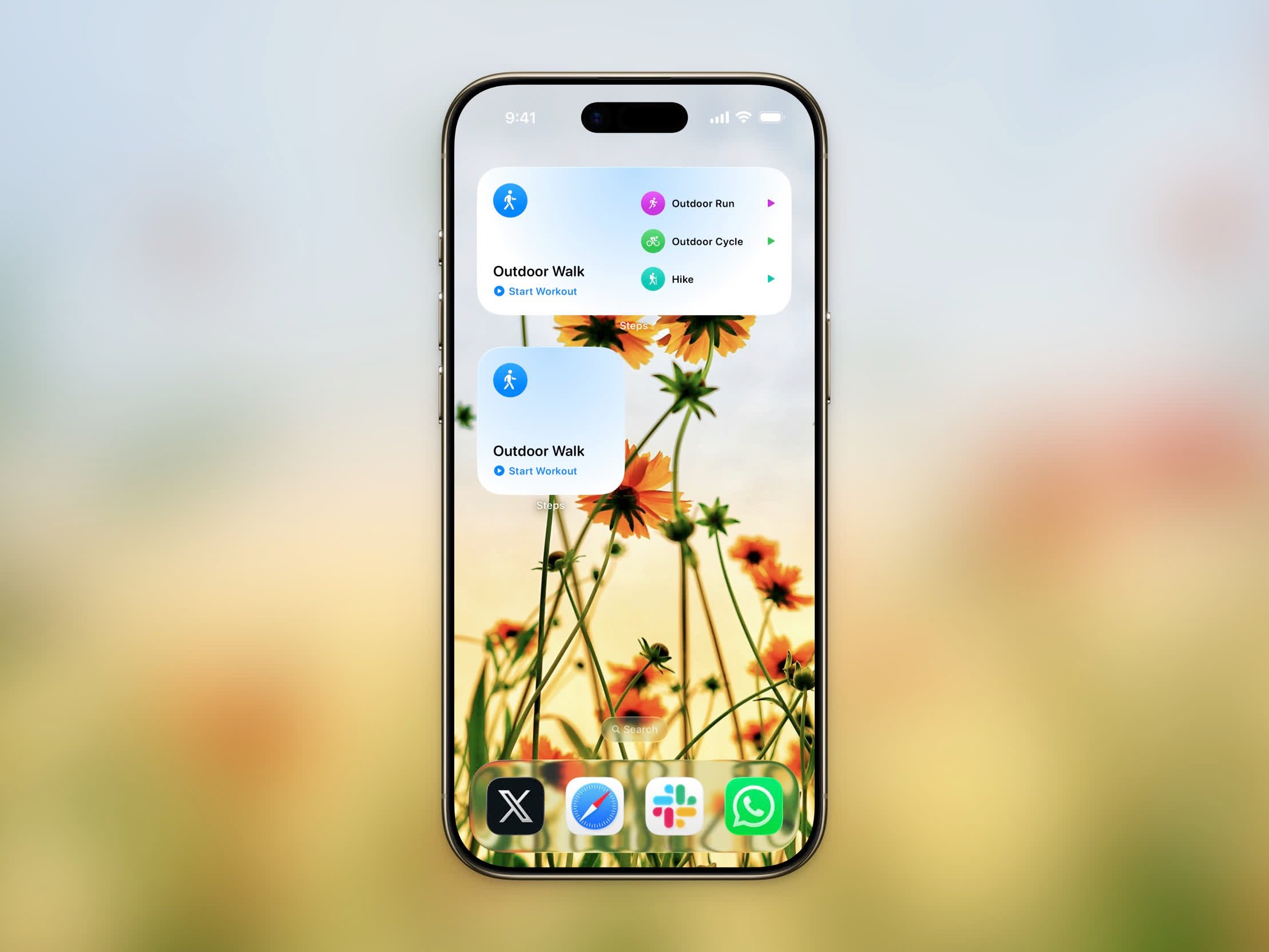 The Start Workout widget lets you begin tracking a [workout](/features/workout-session) straight from your Home Screen. Tap it and Steps opens directly into that workout type — no menus to dig through.
* **Small** — a single configurable workout type with a Start button
* **Medium** — your main workout plus quick-start shortcuts for three more types
When you add the widget, choose which workout type it starts. If a workout is already in progress, tapping the widget opens the active session instead.
## Yearly Goal Widget
The Yearly Goal widget tracks your progress toward your [yearly step goal](/features/yearly-goal). It shows a progress bar, whether you're on track or behind, and supporting stats. It's available in small and medium sizes.
## Live Activity
During an active workout, a Live Activity appears on your Lock Screen and in the Dynamic Island (iOS 26+). It shows:
* Workout type icon
* Elapsed time
* Distance covered
* Calories burned
* Current pace
The Dynamic Island cycles between stats every 30 seconds.
## Adding Widgets
Touch and hold an empty area on your Home Screen until the apps start jiggling.
Tap the **+** button in the top-left corner to open the widget gallery.
Type "Steps" in the search bar to find all available widgets.
Select the widget type and size you want, then tap **Add Widget**.
## Lock Screen Widgets
The Start Workout widget lets you begin tracking a [workout](/features/workout-session) straight from your Home Screen. Tap it and Steps opens directly into that workout type — no menus to dig through.
* **Small** — a single configurable workout type with a Start button
* **Medium** — your main workout plus quick-start shortcuts for three more types
When you add the widget, choose which workout type it starts. If a workout is already in progress, tapping the widget opens the active session instead.
## Yearly Goal Widget
The Yearly Goal widget tracks your progress toward your [yearly step goal](/features/yearly-goal). It shows a progress bar, whether you're on track or behind, and supporting stats. It's available in small and medium sizes.
## Live Activity
During an active workout, a Live Activity appears on your Lock Screen and in the Dynamic Island (iOS 26+). It shows:
* Workout type icon
* Elapsed time
* Distance covered
* Calories burned
* Current pace
The Dynamic Island cycles between stats every 30 seconds.
## Adding Widgets
Touch and hold an empty area on your Home Screen until the apps start jiggling.
Tap the **+** button in the top-left corner to open the widget gallery.
Type "Steps" in the search bar to find all available widgets.
Select the widget type and size you want, then tap **Add Widget**.
## Lock Screen Widgets
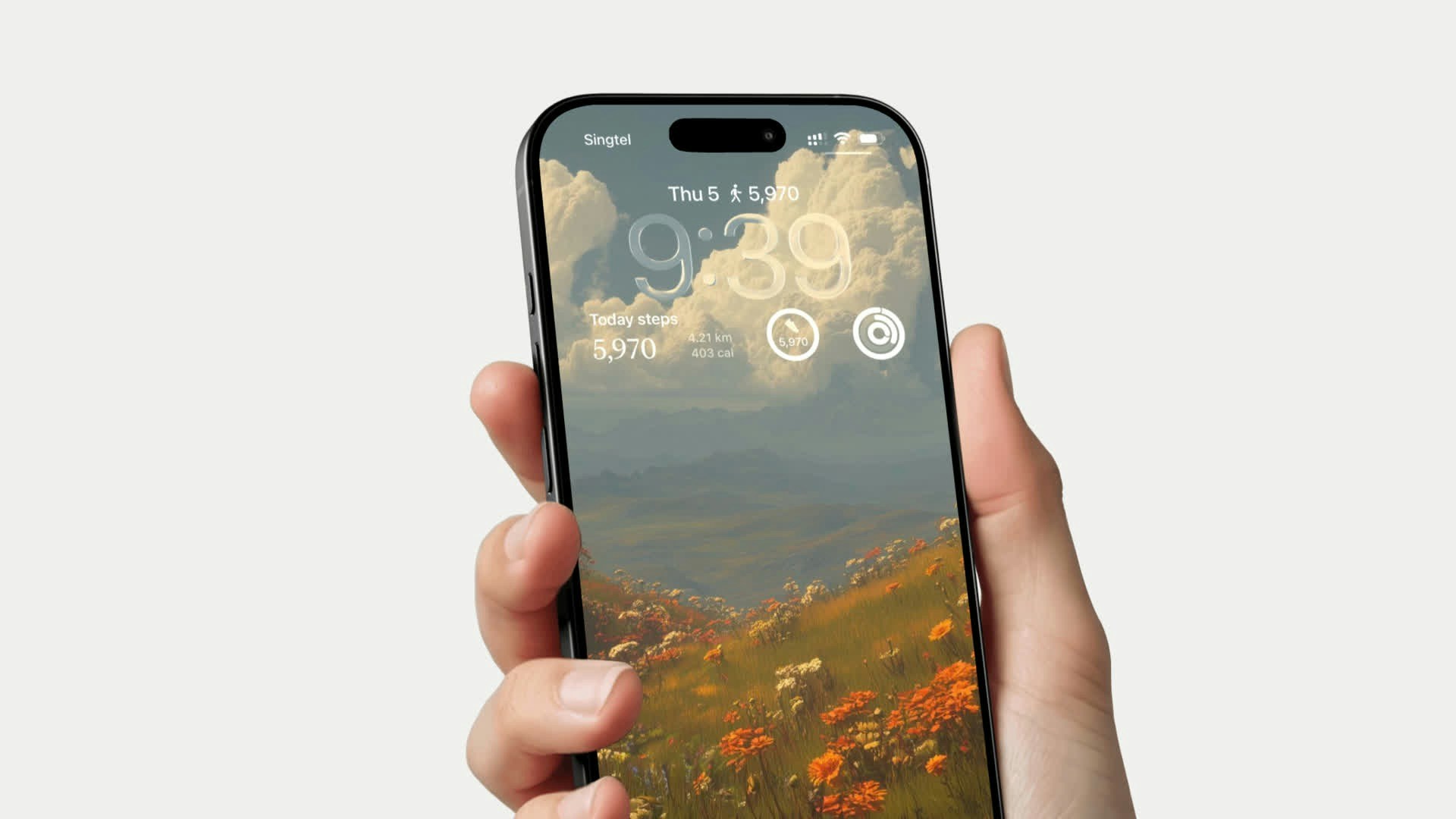 The Today Steps widget is also available for your Lock Screen in three styles:
* **Rectangular** - Shows step count and progress bar
* **Inline** - Compact step count in the date line
* **Circular** - Step count in a round gauge
Your widgets automatically update with your latest step data and reflect your chosen color theme.
## Keeping Widgets Up to Date
For widgets to refresh frequently with your latest step data, **Background App Refresh** must be enabled for Steps.
Go to **Settings → General → Background App Refresh**.
Make sure the master toggle is set to **Wi-Fi & Cellular Data** (or at least **Wi-Fi**).
Scroll down and make sure the toggle next to **Steps** is turned on.
If Background App Refresh is disabled, your widgets may show outdated step counts and only update when you open the app.
The Today Steps widget is also available for your Lock Screen in three styles:
* **Rectangular** - Shows step count and progress bar
* **Inline** - Compact step count in the date line
* **Circular** - Step count in a round gauge
Your widgets automatically update with your latest step data and reflect your chosen color theme.
## Keeping Widgets Up to Date
For widgets to refresh frequently with your latest step data, **Background App Refresh** must be enabled for Steps.
Go to **Settings → General → Background App Refresh**.
Make sure the master toggle is set to **Wi-Fi & Cellular Data** (or at least **Wi-Fi**).
Scroll down and make sure the toggle next to **Steps** is turned on.
If Background App Refresh is disabled, your widgets may show outdated step counts and only update when you open the app.