> ## Documentation Index
> Fetch the complete documentation index at: https://getsteps.app/docs/llms.txt
> Use this file to discover all available pages before exploring further.
# Apple Watch
> Track steps, view workouts, and monitor streaks from your wrist
The Steps Apple Watch app gives you quick access to your daily steps, weekly trends, and workout history right on your wrist.
## Watch Views
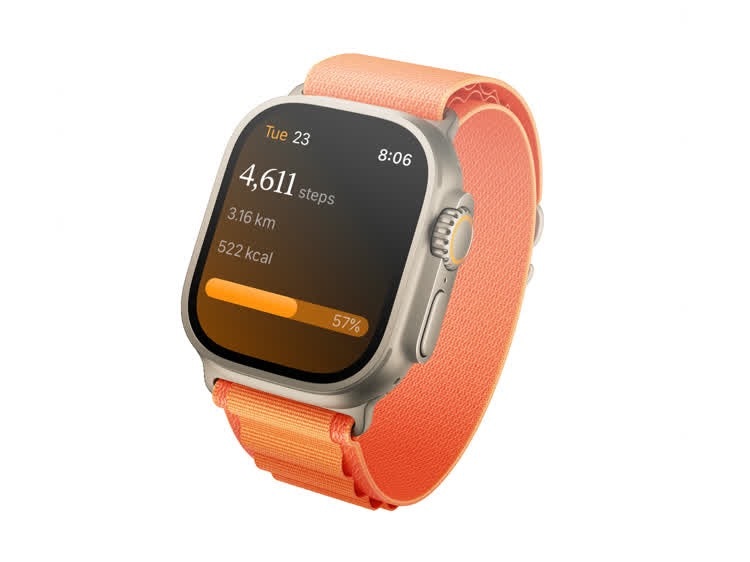 The app is organized into vertical pages you swipe through:
### Today
Your main view showing:
* Current step count
* Distance walked
* Calories burned
* Goal progress bar (color changes when goal is met)
* Current day and date
### Week
Weekly step overview with:
* Total or average steps (toggleable)
* 7-day bar chart
* Dashed goal line for reference
### Month
Monthly step data with a summary of your activity for the current month.
### Workouts
A list of your recent workouts showing:
* Workout type and name
* Duration
* Date
Tap any workout to see more details.
## Workouts on Apple Watch
The app is organized into vertical pages you swipe through:
### Today
Your main view showing:
* Current step count
* Distance walked
* Calories burned
* Goal progress bar (color changes when goal is met)
* Current day and date
### Week
Weekly step overview with:
* Total or average steps (toggleable)
* 7-day bar chart
* Dashed goal line for reference
### Month
Monthly step data with a summary of your activity for the current month.
### Workouts
A list of your recent workouts showing:
* Workout type and name
* Duration
* Date
Tap any workout to see more details.
## Workouts on Apple Watch
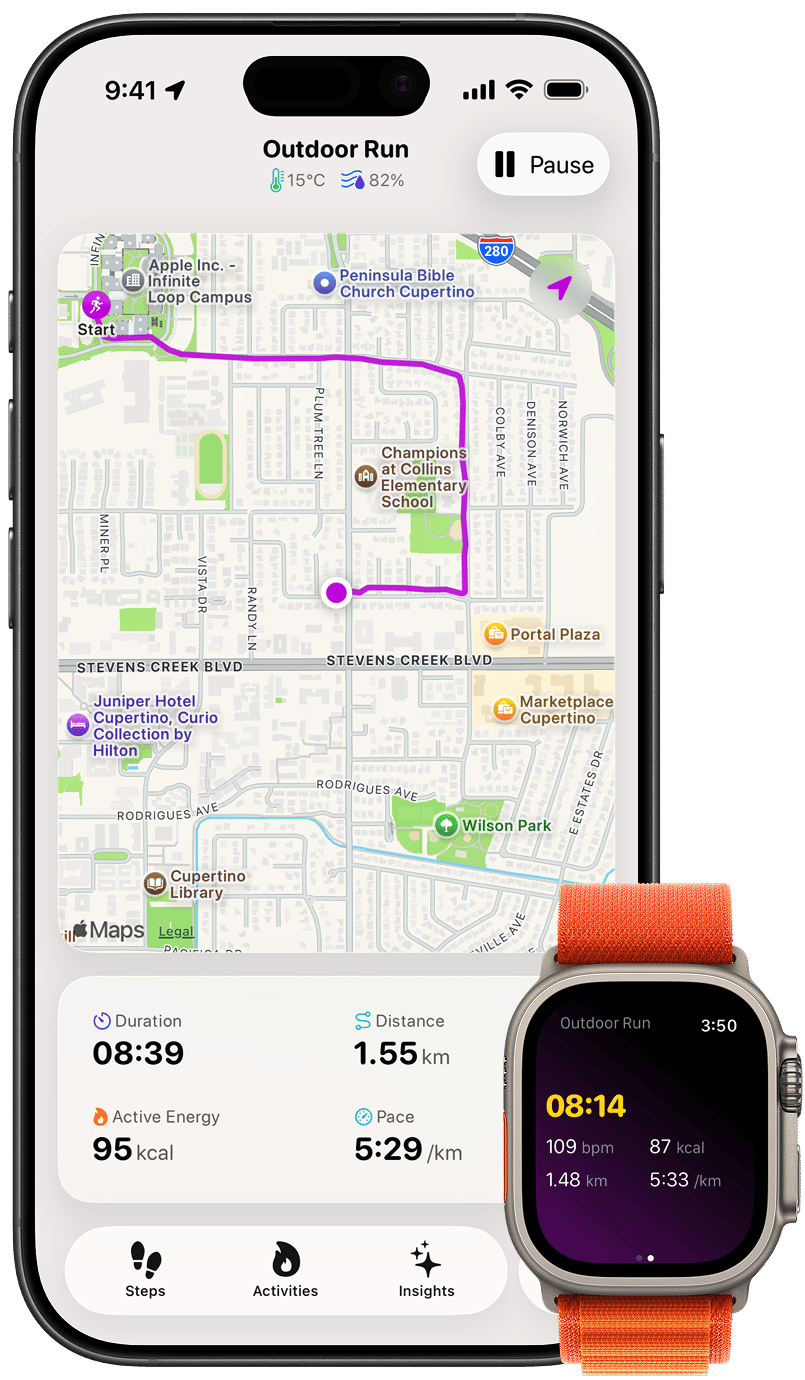 You can start and track a workout right from your wrist — no iPhone needed.
### Starting a Workout
1. Open Steps on your Apple Watch and tap **Start Workout**
2. Choose a workout type:
* Outdoor Walk / Indoor Walk
* Outdoor Run / Indoor Run
* Outdoor Cycle / Indoor Cycle
* Hike
The workout begins immediately and your watch keeps tracking even if your iPhone isn't nearby.
### Live Metrics
During a workout, your watch shows the elapsed time along with a 2×2 grid of live stats:
* **Heart Rate** (bpm)
* **Calories** burned (kcal)
* **Distance** covered
* **Pace** — or **Speed** for cycling
### GPS Route
Outdoor workouts record your route with GPS so you can review the path you took afterward in the [Activity Detail](/features/activity-detail) view.
### Mirroring to iPhone
When your iPhone is nearby, an active watch workout mirrors to your phone in real time — live metrics update on the phone as you move. If your iPhone is out of range, the watch records the complete workout on its own and syncs it once you're reconnected.
## Complications
You can start and track a workout right from your wrist — no iPhone needed.
### Starting a Workout
1. Open Steps on your Apple Watch and tap **Start Workout**
2. Choose a workout type:
* Outdoor Walk / Indoor Walk
* Outdoor Run / Indoor Run
* Outdoor Cycle / Indoor Cycle
* Hike
The workout begins immediately and your watch keeps tracking even if your iPhone isn't nearby.
### Live Metrics
During a workout, your watch shows the elapsed time along with a 2×2 grid of live stats:
* **Heart Rate** (bpm)
* **Calories** burned (kcal)
* **Distance** covered
* **Pace** — or **Speed** for cycling
### GPS Route
Outdoor workouts record your route with GPS so you can review the path you took afterward in the [Activity Detail](/features/activity-detail) view.
### Mirroring to iPhone
When your iPhone is nearby, an active watch workout mirrors to your phone in real time — live metrics update on the phone as you move. If your iPhone is out of range, the watch records the complete workout on its own and syncs it once you're reconnected.
## Complications
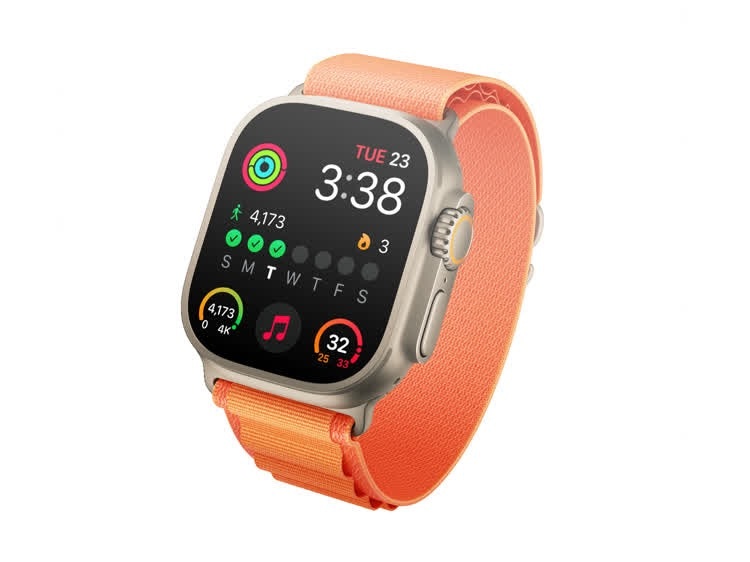 Add Steps data to your watch face with three complication types:
| Complication | Watch Face Styles | Shows |
| ------------- | ------------------------------------- | ---------------------------------- |
| **Steps** | Inline, Circular, Rectangular, Corner | Daily step count and progress |
| **Streak** | Rectangular | Current streak and weekly progress |
| **Step Goal** | Circular, Corner | Steps with goal progress gauge |
## Adding Complications
1. Long-press your watch face
2. Tap **Edit**
3. Swipe to the complication slots
4. Select a slot and choose a Steps complication
5. Press the Digital Crown to save
Add Steps data to your watch face with three complication types:
| Complication | Watch Face Styles | Shows |
| ------------- | ------------------------------------- | ---------------------------------- |
| **Steps** | Inline, Circular, Rectangular, Corner | Daily step count and progress |
| **Streak** | Rectangular | Current streak and weekly progress |
| **Step Goal** | Circular, Corner | Steps with goal progress gauge |
## Adding Complications
1. Long-press your watch face
2. Tap **Edit**
3. Swipe to the complication slots
4. Select a slot and choose a Steps complication
5. Press the Digital Crown to save