> ## Documentation Index
> Fetch the complete documentation index at: https://getsteps.app/docs/llms.txt
> Use this file to discover all available pages before exploring further.
# Notifications
> Stay informed with goal achievement, milestone, and workout notifications
Steps sends notifications to celebrate your progress and keep you motivated throughout the day.
## Notification Types
Each type can be turned on or off independently in **Settings → Notifications**.
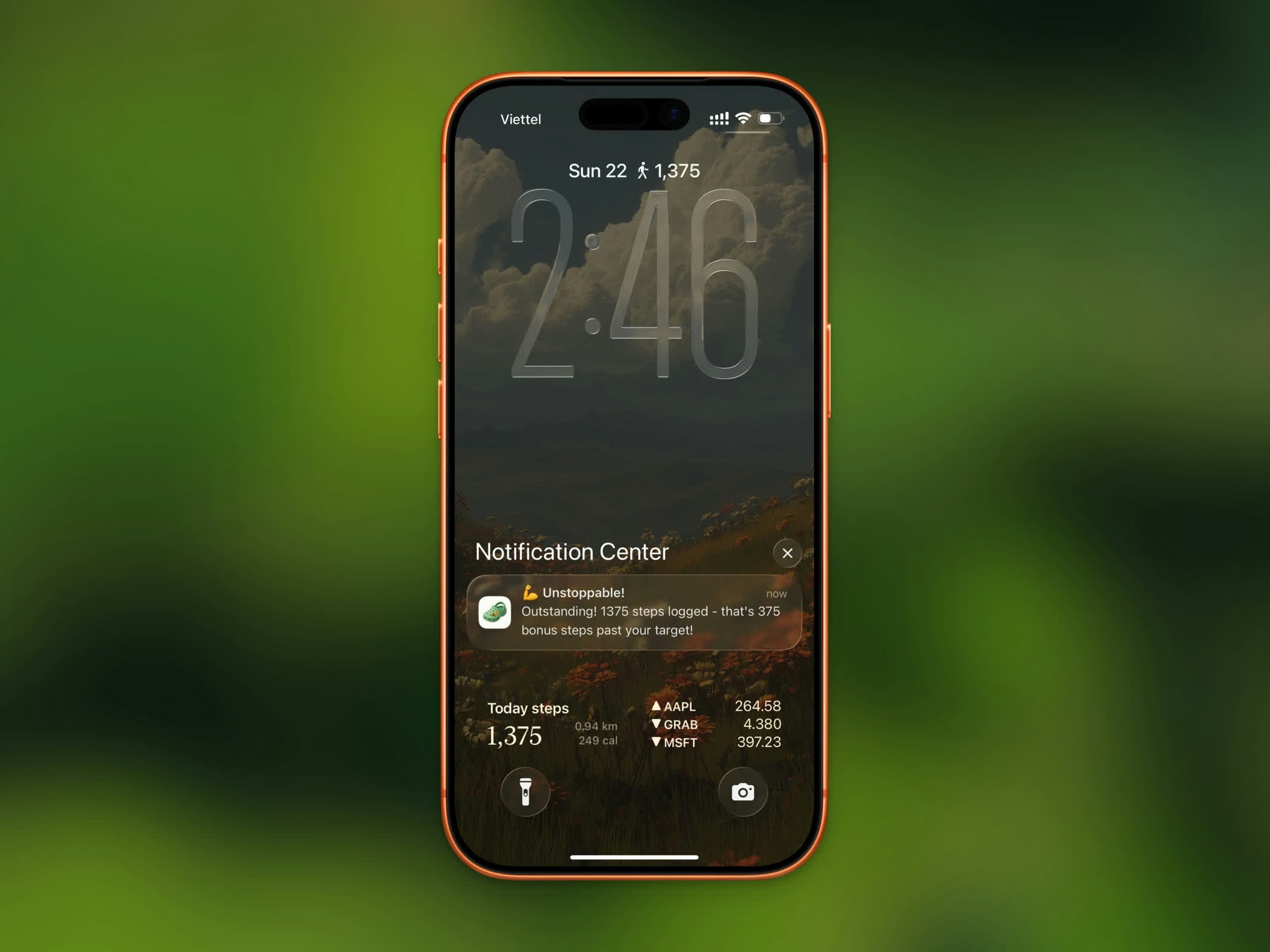 ### Goal Achievement
Triggered when your step count reaches your daily goal — a celebratory message with your achievement. This setting also sends a progress update as you approach your goal, showing your current percentage and how many steps remain. Each is sent at most once per day.
### Workout Completion
Sent after you finish a workout session. Includes your workout duration and distance covered. The message varies based on workout type (walking, running, or cycling).
### App Unlock
If you use [App Lock](/features/app-lock), you'll receive a notification when your step goal is reached and your locked apps are unblocked. Sent at most once per day.
### Daily Reminders
Optional nudges in the morning, afternoon, and evening to keep you moving toward your goal.
## Enabling Notifications
1. Open **Settings** in Steps
2. Toggle **Notifications** on
3. Allow notifications when prompted by iOS
## Disabling Notifications
Toggle **Notifications** off in Steps Settings to stop all notifications. You can also manage Steps notifications in your iPhone's **Settings > Notifications > Steps**.
### Goal Achievement
Triggered when your step count reaches your daily goal — a celebratory message with your achievement. This setting also sends a progress update as you approach your goal, showing your current percentage and how many steps remain. Each is sent at most once per day.
### Workout Completion
Sent after you finish a workout session. Includes your workout duration and distance covered. The message varies based on workout type (walking, running, or cycling).
### App Unlock
If you use [App Lock](/features/app-lock), you'll receive a notification when your step goal is reached and your locked apps are unblocked. Sent at most once per day.
### Daily Reminders
Optional nudges in the morning, afternoon, and evening to keep you moving toward your goal.
## Enabling Notifications
1. Open **Settings** in Steps
2. Toggle **Notifications** on
3. Allow notifications when prompted by iOS
## Disabling Notifications
Toggle **Notifications** off in Steps Settings to stop all notifications. You can also manage Steps notifications in your iPhone's **Settings > Notifications > Steps**.