> ## Documentation Index
> Fetch the complete documentation index at: https://getsteps.app/docs/llms.txt
> Use this file to discover all available pages before exploring further.
# Home Dashboard
> Your daily step tracking command center with charts, progress, and weather
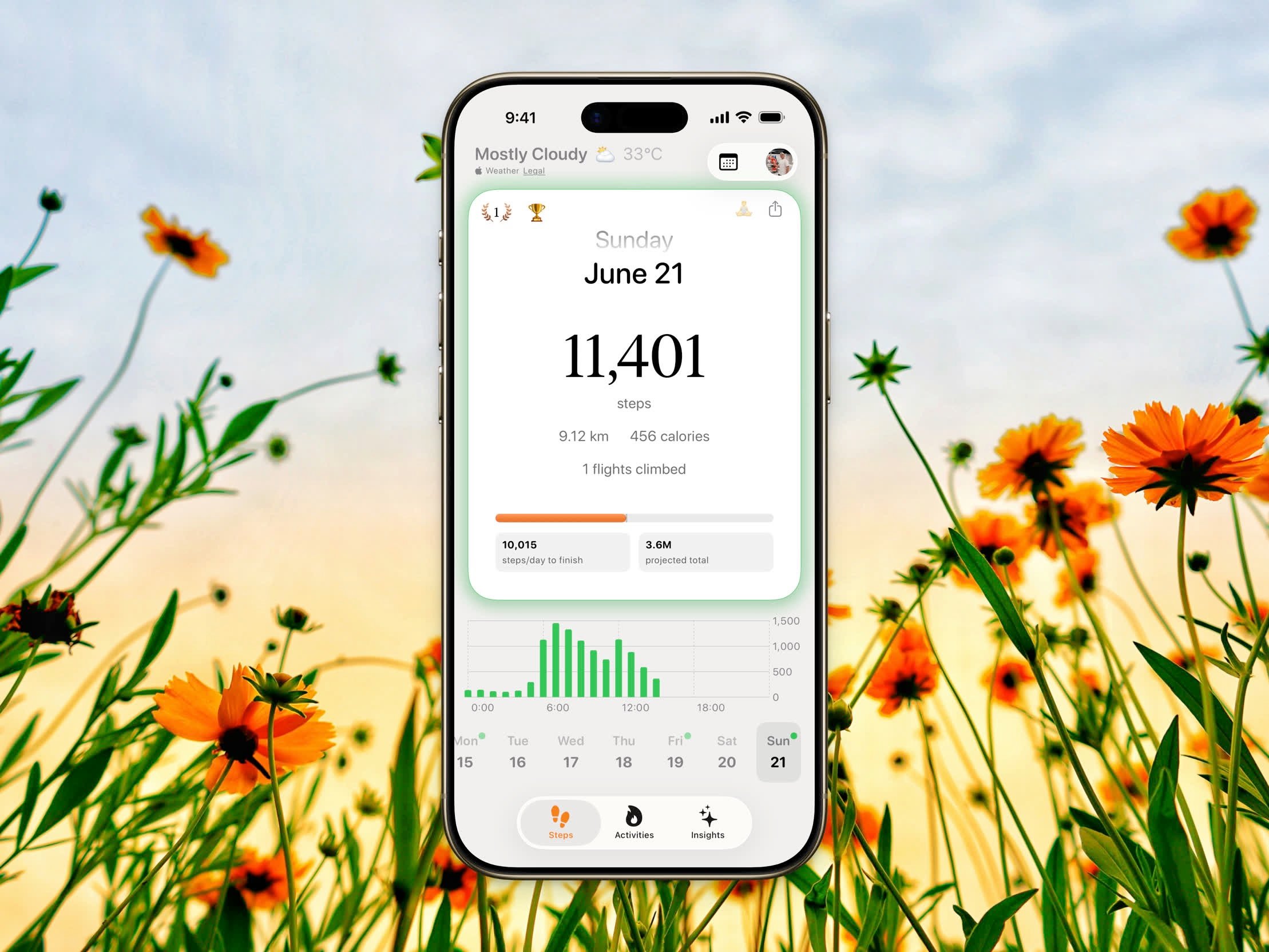
The Home Dashboard is your main view in Steps, showing your step count, activity metrics, progress toward your daily goal, and step charts.
 ## Step Count Card
The main card displays your current activity:
* **Step Count** - Your total steps for the selected period
* **Distance** - Walking and running distance in km or miles
* **Calories** - Active energy burned
* **Flights Climbed** - Floors climbed (daily view only)
A **progress ring** surrounds the card, filling up as you approach your daily goal. The ring color changes to your "completed" theme color once you hit your goal.
## Streak Badge
Your current streak count appears in the top-left corner with a flame icon. Tap it to view your full streak details, heatmap, and badge progress.
## Stepboard
Tap the trophy emoji (🏆) near the top of the Home Dashboard to open the [Stepboard](/features/stepboard) — the daily leaderboard where you compete with the wider Steps community or your private groups. From the Stepboard you can also reach [World Stats](/features/world-stats) for community-wide totals and your global rank.
## Rest Day
Tap the 🧘 button in the top-right corner to mark today as a rest day, and tap again to remove it. Rest days pause your [streak](/features/streaks) without breaking it. The button stays dimmed until the current day is marked as a rest day.
## Motivational Messages
You can choose what appears below your step count in **Settings > Home insight**:
* **Message** - A motivational quote or encouragement
* **Average** - How your steps compare to your daily average
* **Yearly Goal** - Your progress toward your [yearly step goal](/features/yearly-goal)
* **Off** - Show nothing extra
Tap the insight below your step count to quickly cycle through these modes without opening Settings.
## Charts
## Step Count Card
The main card displays your current activity:
* **Step Count** - Your total steps for the selected period
* **Distance** - Walking and running distance in km or miles
* **Calories** - Active energy burned
* **Flights Climbed** - Floors climbed (daily view only)
A **progress ring** surrounds the card, filling up as you approach your daily goal. The ring color changes to your "completed" theme color once you hit your goal.
## Streak Badge
Your current streak count appears in the top-left corner with a flame icon. Tap it to view your full streak details, heatmap, and badge progress.
## Stepboard
Tap the trophy emoji (🏆) near the top of the Home Dashboard to open the [Stepboard](/features/stepboard) — the daily leaderboard where you compete with the wider Steps community or your private groups. From the Stepboard you can also reach [World Stats](/features/world-stats) for community-wide totals and your global rank.
## Rest Day
Tap the 🧘 button in the top-right corner to mark today as a rest day, and tap again to remove it. Rest days pause your [streak](/features/streaks) without breaking it. The button stays dimmed until the current day is marked as a rest day.
## Motivational Messages
You can choose what appears below your step count in **Settings > Home insight**:
* **Message** - A motivational quote or encouragement
* **Average** - How your steps compare to your daily average
* **Yearly Goal** - Your progress toward your [yearly step goal](/features/yearly-goal)
* **Off** - Show nothing extra
Tap the insight below your step count to quickly cycle through these modes without opening Settings.
## Charts
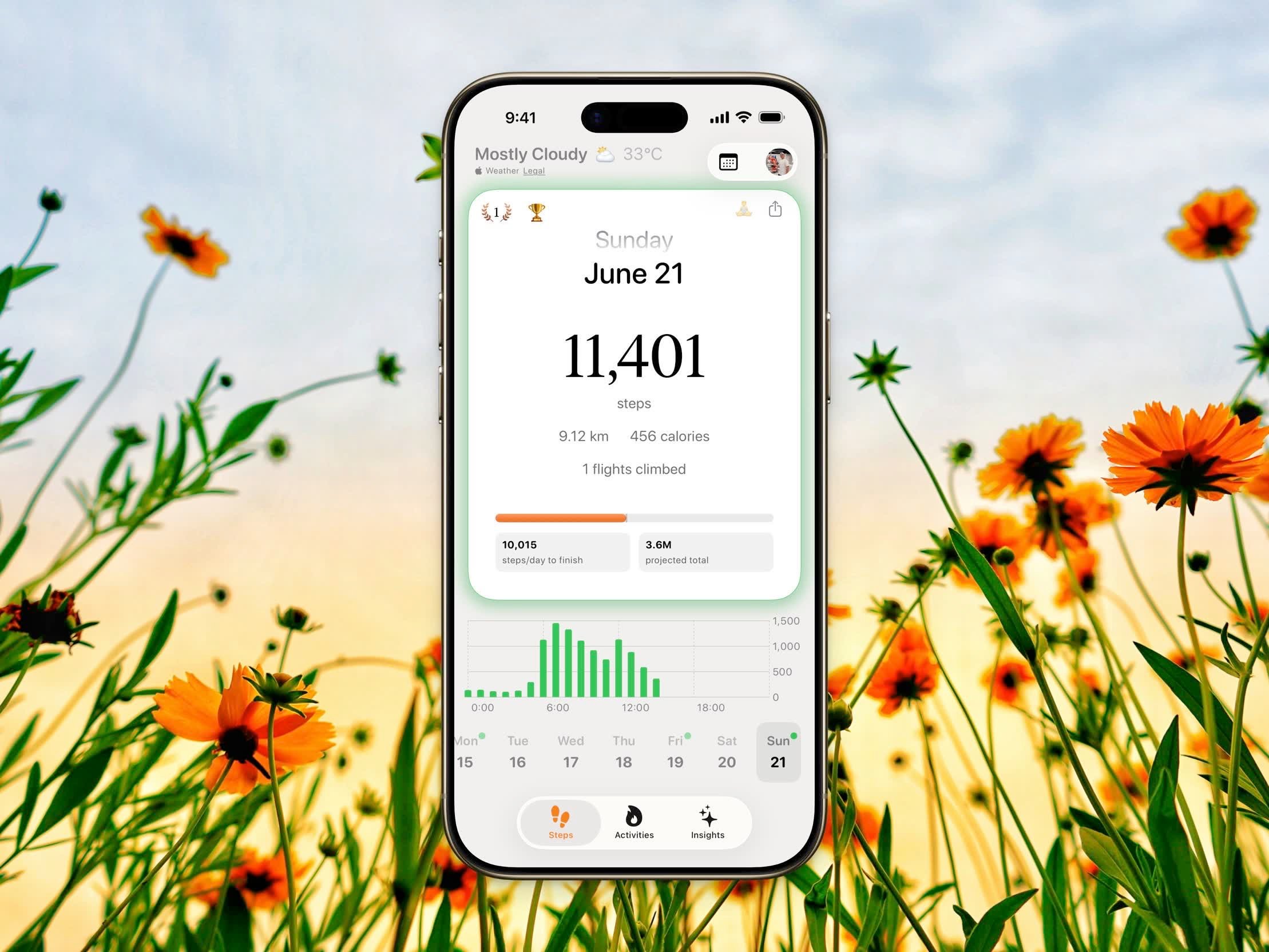 Step charts appear below the main card based on your selected view mode:
| View | Chart | Access |
| ----------- | ---------------------- | ------ |
| **Daily** | Hourly step bar chart | Free |
| **Weekly** | 7-day step bar chart | Pro |
| **Monthly** | Monthly step bar chart | Pro |
Weekly and Monthly views are Pro features. You can switch between views in **Settings > View steps by**.
In weekly and monthly views, you can toggle between **Total** and **Average** steps using the button in the top-right corner.
## Date Navigation
Swipe **left** or **right** on the step card to navigate between days, weeks, or months. A horizontal scrollable calendar strip at the bottom lets you jump to any date quickly.
## Weather
When enabled in Settings, the current temperature and humidity display in the top toolbar. Toggle this in **Settings > Show weather**.
## Refresh
Tap the refresh button in the top-right corner to manually sync your latest step data from Apple Health.
## Share Your Steps
Tap the share button in the top toolbar to post your step count as an image. You can pick a clean photo card with your top stats, or a transparent step count to drop onto your own background. See [Sharing](/features/sharing#share-your-steps) for the full set of options.
Step charts appear below the main card based on your selected view mode:
| View | Chart | Access |
| ----------- | ---------------------- | ------ |
| **Daily** | Hourly step bar chart | Free |
| **Weekly** | 7-day step bar chart | Pro |
| **Monthly** | Monthly step bar chart | Pro |
Weekly and Monthly views are Pro features. You can switch between views in **Settings > View steps by**.
In weekly and monthly views, you can toggle between **Total** and **Average** steps using the button in the top-right corner.
## Date Navigation
Swipe **left** or **right** on the step card to navigate between days, weeks, or months. A horizontal scrollable calendar strip at the bottom lets you jump to any date quickly.
## Weather
When enabled in Settings, the current temperature and humidity display in the top toolbar. Toggle this in **Settings > Show weather**.
## Refresh
Tap the refresh button in the top-right corner to manually sync your latest step data from Apple Health.
## Share Your Steps
Tap the share button in the top toolbar to post your step count as an image. You can pick a clean photo card with your top stats, or a transparent step count to drop onto your own background. See [Sharing](/features/sharing#share-your-steps) for the full set of options.