> ## Documentation Index
> Fetch the complete documentation index at: https://getsteps.app/docs/llms.txt
> Use this file to discover all available pages before exploring further.
# Getting Started
> Set up Steps, configure your daily goal, and start tracking your activity
Steps makes it easy to start tracking your daily steps, workouts, and fitness goals right from your iPhone.
## Onboarding
When you first open Steps, you'll go through a quick setup to personalize your experience:
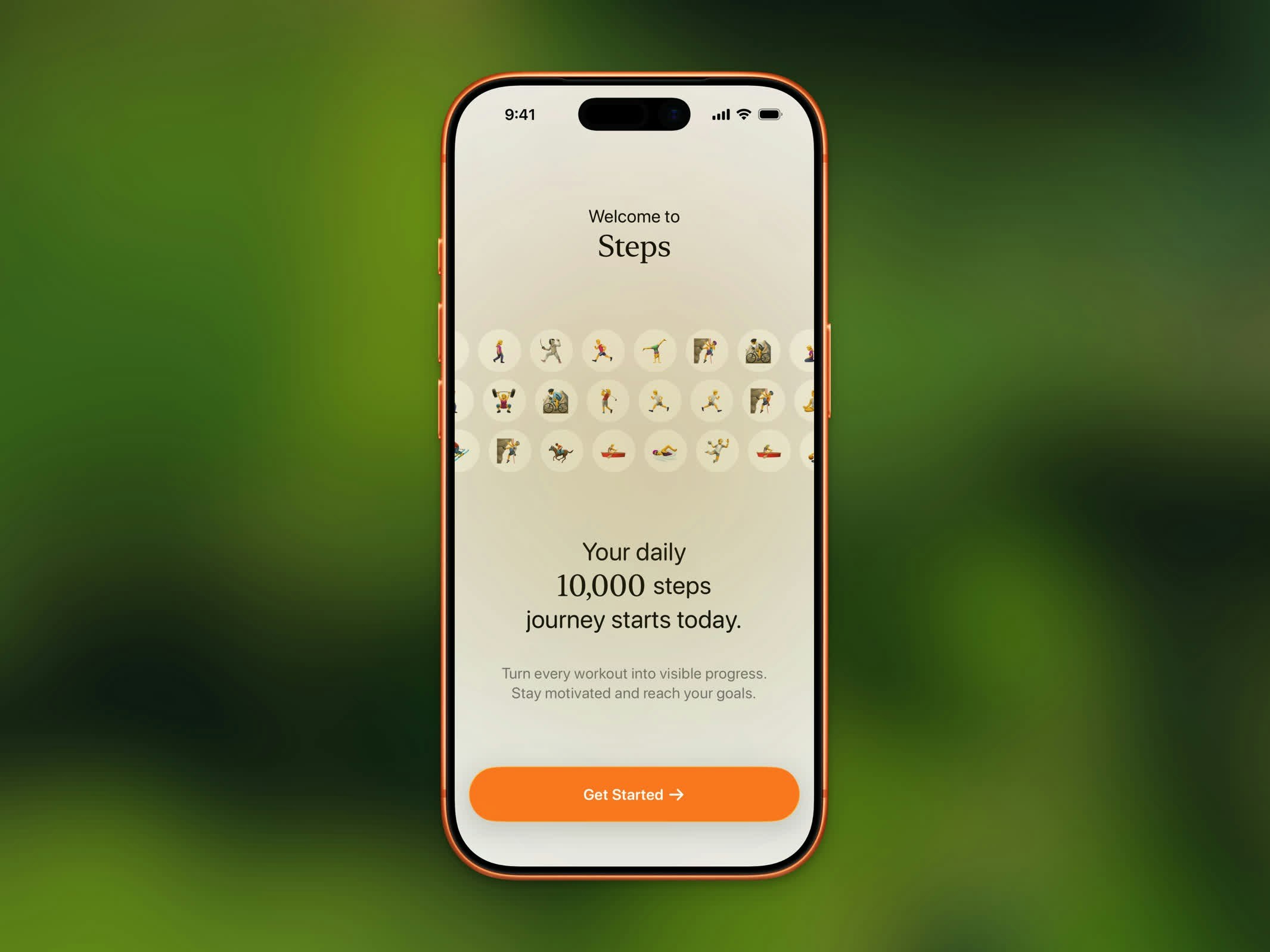 Choose a step goal between 1,000 and 20,000 steps using the scroll picker. You can always change this later in Settings.
Steps requests access to Apple Health to read your step count, distance, calories, flights climbed, and workout data. Tap **Allow All** for the best experience.
That's it! Steps begins tracking automatically using your iPhone's motion sensors and Apple Health data.
Along the way, Steps asks a few quick questions to personalize your experience, invites you to turn on notifications, and introduces features like [Stepboard](/features/stepboard) and [App Lock](/features/app-lock). You can skip any of these and set them up later in Settings.
## HealthKit Permissions
Choose a step goal between 1,000 and 20,000 steps using the scroll picker. You can always change this later in Settings.
Steps requests access to Apple Health to read your step count, distance, calories, flights climbed, and workout data. Tap **Allow All** for the best experience.
That's it! Steps begins tracking automatically using your iPhone's motion sensors and Apple Health data.
Along the way, Steps asks a few quick questions to personalize your experience, invites you to turn on notifications, and introduces features like [Stepboard](/features/stepboard) and [App Lock](/features/app-lock). You can skip any of these and set them up later in Settings.
## HealthKit Permissions
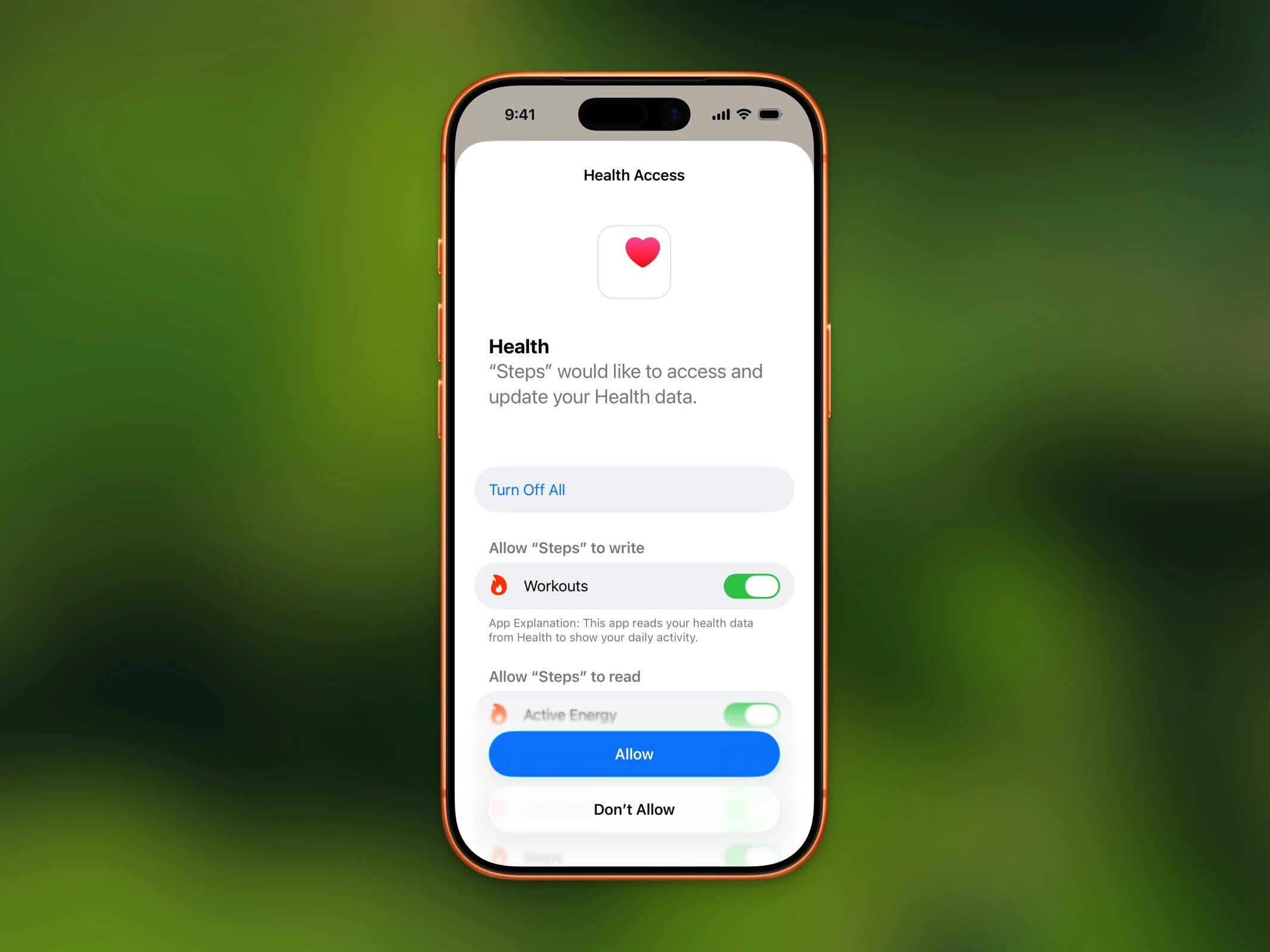 Steps reads the following data from Apple Health:
* **Steps** - Your daily step count
* **Walking + Running Distance** - Distance covered on foot
* **Active Energy Burned** - Calories burned through activity
* **Flights Climbed** - Floors you've climbed
* **Heart Rate** - Used during workouts
* **Workout Routes** - GPS routes for your recorded workouts
Steps never writes to or modifies your Apple Health data. It only reads your existing activity information.
## Privacy
Your health data stays on your device. Steps does not upload your fitness data to any server. All processing happens locally on your iPhone.
## Re-syncing Health Data
If your step count looks incorrect or data appears missing, you can re-sync from Apple Health:
1. Open **Settings** in Steps
2. Scroll to the Support section
3. Tap **Re-sync Apple Health data**
This refreshes all your activity data from Apple Health.
## Restart Onboarding
To go through the setup flow again:
1. Open **Settings** in Steps
2. Tap **Restart Onboarding**
3. Confirm when prompted
This lets you reconfigure your daily goal and permissions.
Steps reads the following data from Apple Health:
* **Steps** - Your daily step count
* **Walking + Running Distance** - Distance covered on foot
* **Active Energy Burned** - Calories burned through activity
* **Flights Climbed** - Floors you've climbed
* **Heart Rate** - Used during workouts
* **Workout Routes** - GPS routes for your recorded workouts
Steps never writes to or modifies your Apple Health data. It only reads your existing activity information.
## Privacy
Your health data stays on your device. Steps does not upload your fitness data to any server. All processing happens locally on your iPhone.
## Re-syncing Health Data
If your step count looks incorrect or data appears missing, you can re-sync from Apple Health:
1. Open **Settings** in Steps
2. Scroll to the Support section
3. Tap **Re-sync Apple Health data**
This refreshes all your activity data from Apple Health.
## Restart Onboarding
To go through the setup flow again:
1. Open **Settings** in Steps
2. Tap **Restart Onboarding**
3. Confirm when prompted
This lets you reconfigure your daily goal and permissions.