> ## Documentation Index
> Fetch the complete documentation index at: https://getsteps.app/docs/llms.txt
> Use this file to discover all available pages before exploring further.
# App Lock
> Block distracting apps until you reach your daily step goal
App Lock uses Apple's Screen Time to block selected apps until you hit your daily step goal, helping you stay active before screen time.
App Lock is a Pro feature.
## How It Works
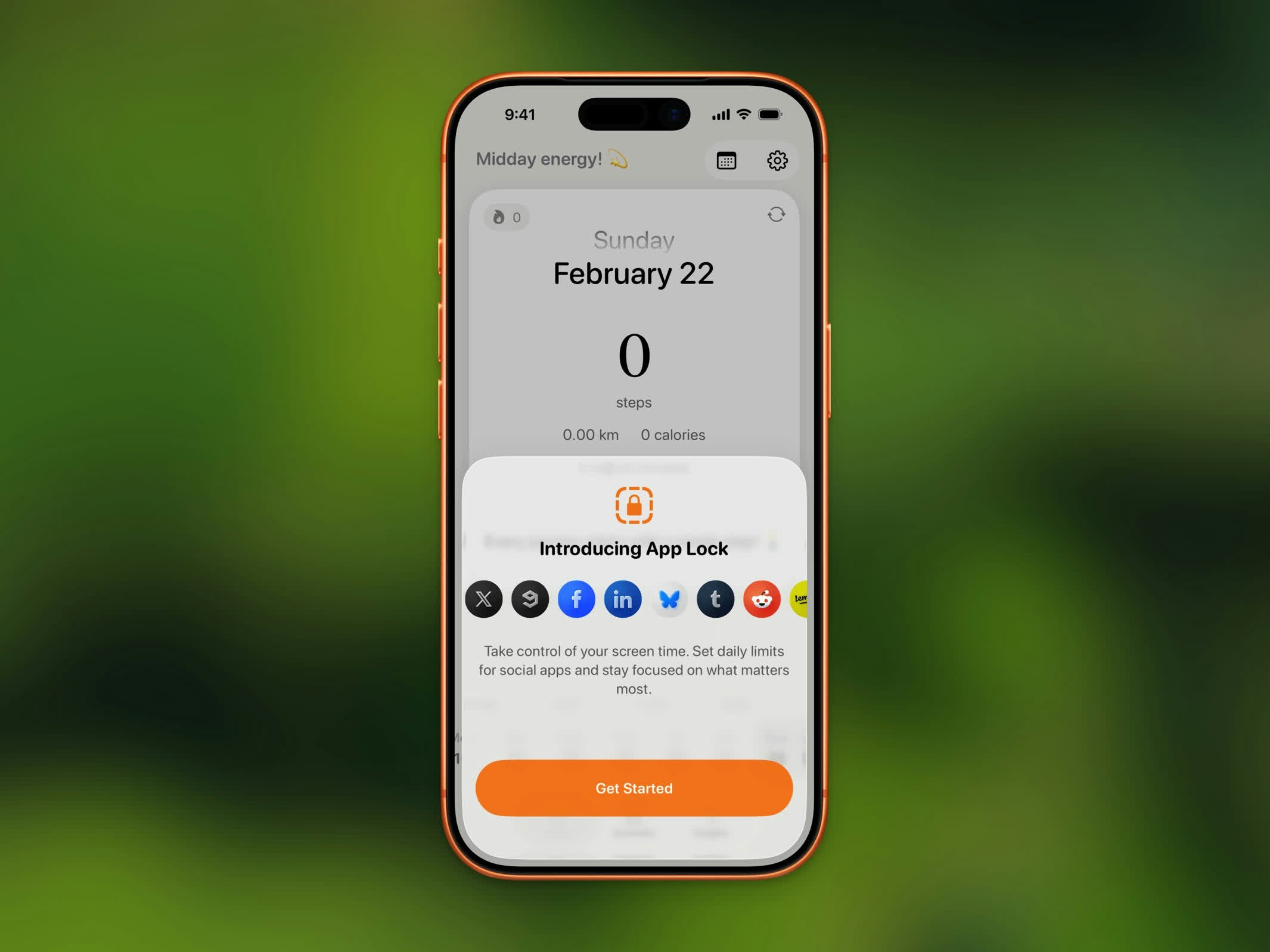 Go to **Settings > App Lock** and turn it on. Steps will request Screen Time authorization.
Pick the apps and app categories you want to block using Apple's app picker. Social media, games, and entertainment apps are popular choices.
Locked apps are blocked with a shield until you reach your daily step goal. Once you hit your target, all selected apps unlock automatically.
## Daily Reset
App Lock resets at **midnight** every day. This means:
* Shields are re-applied at the start of each new day
* Once apps are unlocked, they stay unlocked until midnight — even if you change your goal
* You start fresh each morning
## Progress Messages
While apps are locked, you'll see progress messages encouraging you to keep walking. When you reach your goal, an **"Apps Unlocked!"** notification lets you know.
## Mid-Day Goal Changes
* If you **lower** your goal and your current steps already exceed it, apps unlock immediately
* If you **raise** your goal, apps remain locked until you reach the new target
App Lock requires Screen Time authorization. If you deny the permission, you'll need to grant it in your device's Screen Time settings to use this feature.
Go to **Settings > App Lock** and turn it on. Steps will request Screen Time authorization.
Pick the apps and app categories you want to block using Apple's app picker. Social media, games, and entertainment apps are popular choices.
Locked apps are blocked with a shield until you reach your daily step goal. Once you hit your target, all selected apps unlock automatically.
## Daily Reset
App Lock resets at **midnight** every day. This means:
* Shields are re-applied at the start of each new day
* Once apps are unlocked, they stay unlocked until midnight — even if you change your goal
* You start fresh each morning
## Progress Messages
While apps are locked, you'll see progress messages encouraging you to keep walking. When you reach your goal, an **"Apps Unlocked!"** notification lets you know.
## Mid-Day Goal Changes
* If you **lower** your goal and your current steps already exceed it, apps unlock immediately
* If you **raise** your goal, apps remain locked until you reach the new target
App Lock requires Screen Time authorization. If you deny the permission, you'll need to grant it in your device's Screen Time settings to use this feature.