> ## Documentation Index
> Fetch the complete documentation index at: https://getsteps.app/docs/llms.txt
> Use this file to discover all available pages before exploring further.
# Activity Detail
> View workout stats, route maps, playback mode, and share or export your activities
The Activity Detail view gives you a complete breakdown of any recorded workout, including your route, stats, and sharing options.
## Route Map
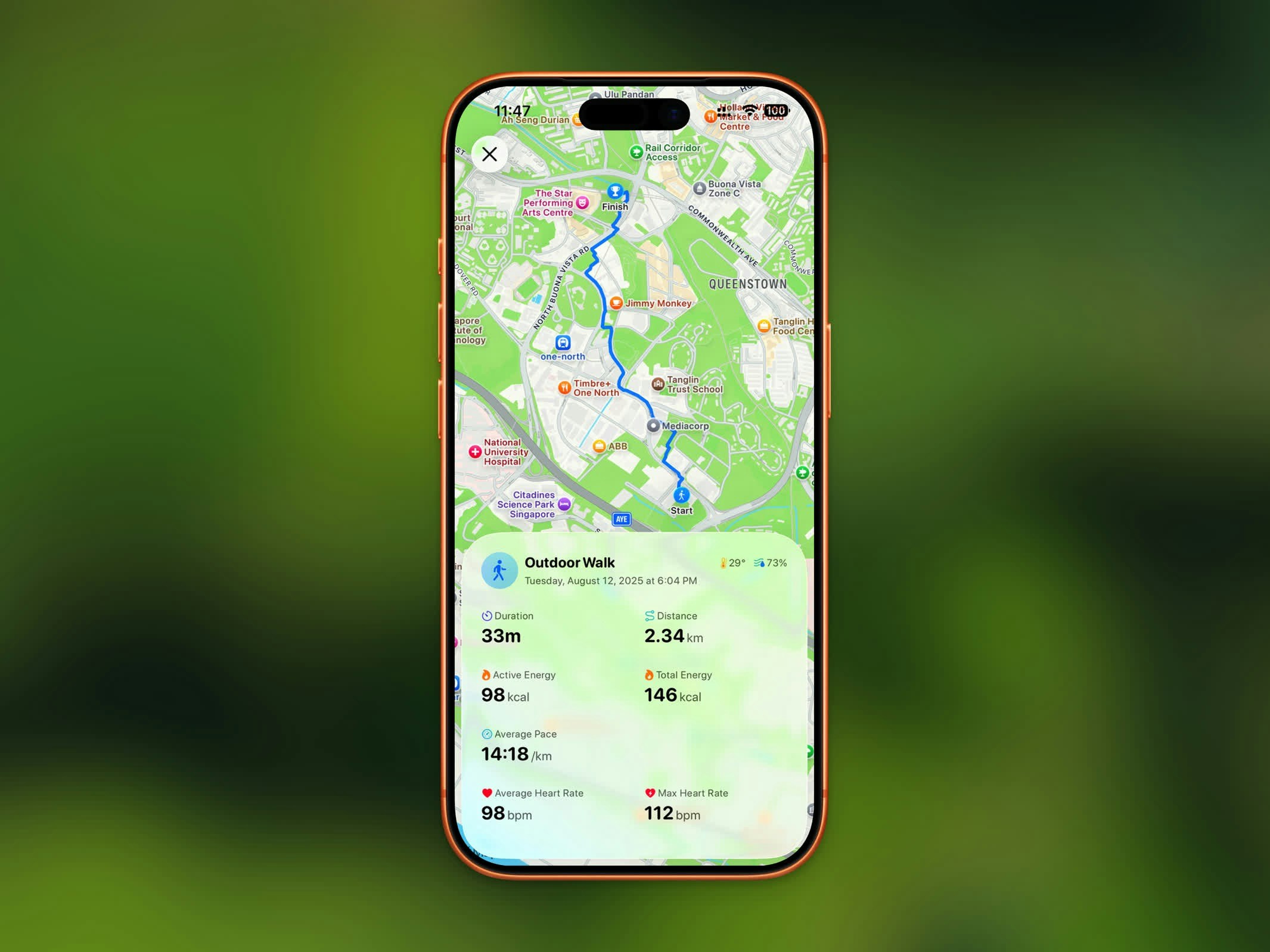 For outdoor workouts, a map displays your GPS route drawn in the workout's color. You can switch between:
* **Standard** map view
* **Satellite** imagery view
## Workout Stats
Every workout detail view shows:
* **Duration** - Total workout time
* **Distance** - Total distance covered
* **Pace** - Average pace (for walking and running)
* **Elevation Gain** - Total climb during the workout
* **Heart Rate** - Average and max heart rate
* **Calories** - Active energy burned
* **Weather** - Temperature and humidity during the workout
## Heart Rate & Zones
For outdoor workouts, a map displays your GPS route drawn in the workout's color. You can switch between:
* **Standard** map view
* **Satellite** imagery view
## Workout Stats
Every workout detail view shows:
* **Duration** - Total workout time
* **Distance** - Total distance covered
* **Pace** - Average pace (for walking and running)
* **Elevation Gain** - Total climb during the workout
* **Heart Rate** - Average and max heart rate
* **Calories** - Active energy burned
* **Weather** - Temperature and humidity during the workout
## Heart Rate & Zones
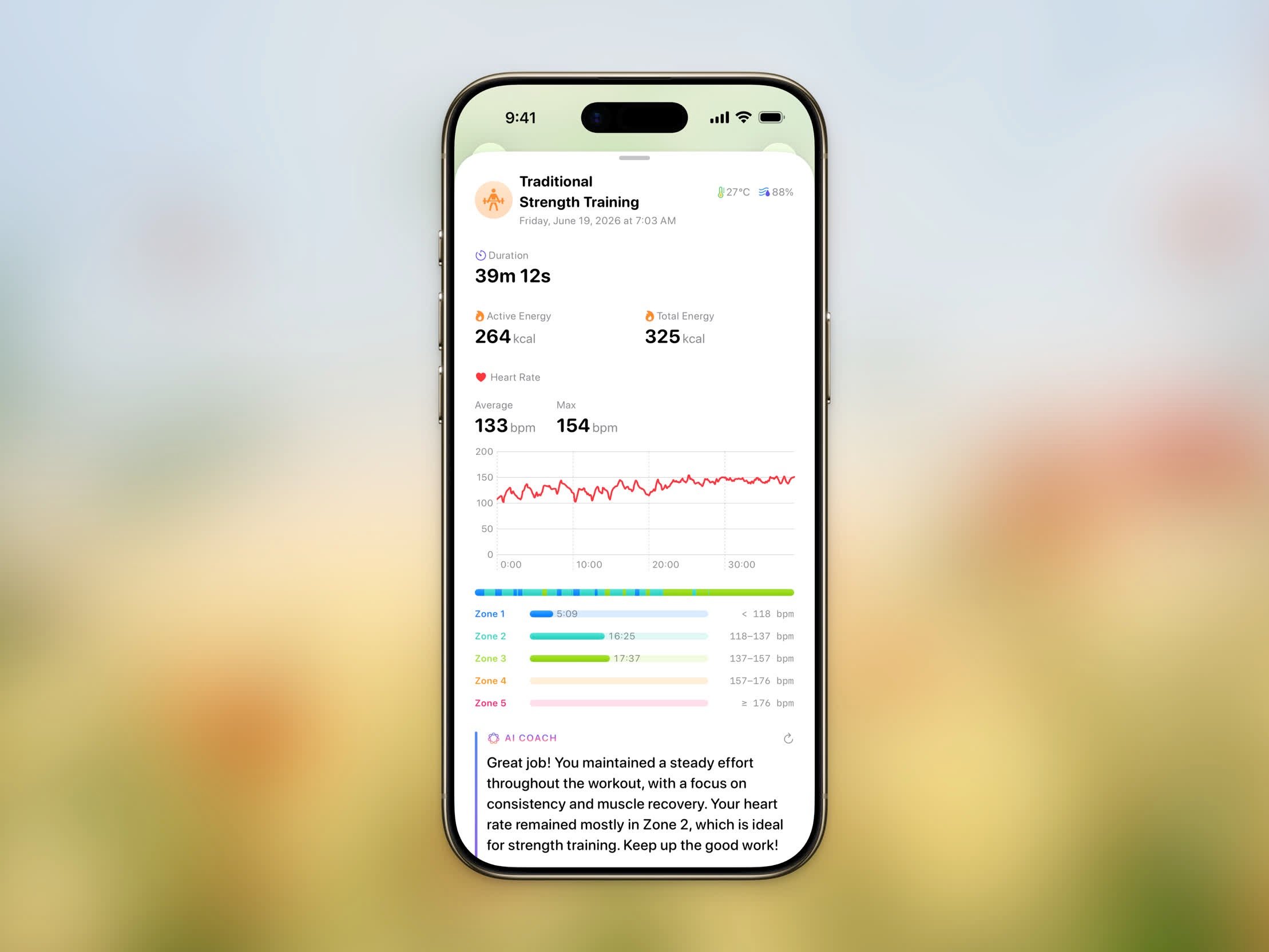 When a workout has heart rate data, the **Heart Rate** section shows your average and max along with a chart of your heart rate over the session.
Below the chart, the **Time in Zones** breakdown shows how long you spent in each of five heart rate zones, from easy effort to maximum effort:
| Zone | Effort |
| ---------- | ---------- |
| **Zone 1** | Very light |
| **Zone 2** | Light |
| **Zone 3** | Moderate |
| **Zone 4** | Hard |
| **Zone 5** | Maximum |
Each zone shows the time spent in it and its heart rate range in bpm.
## Splits
When a workout has heart rate data, the **Heart Rate** section shows your average and max along with a chart of your heart rate over the session.
Below the chart, the **Time in Zones** breakdown shows how long you spent in each of five heart rate zones, from easy effort to maximum effort:
| Zone | Effort |
| ---------- | ---------- |
| **Zone 1** | Very light |
| **Zone 2** | Light |
| **Zone 3** | Moderate |
| **Zone 4** | Hard |
| **Zone 5** | Maximum |
Each zone shows the time spent in it and its heart rate range in bpm.
## Splits
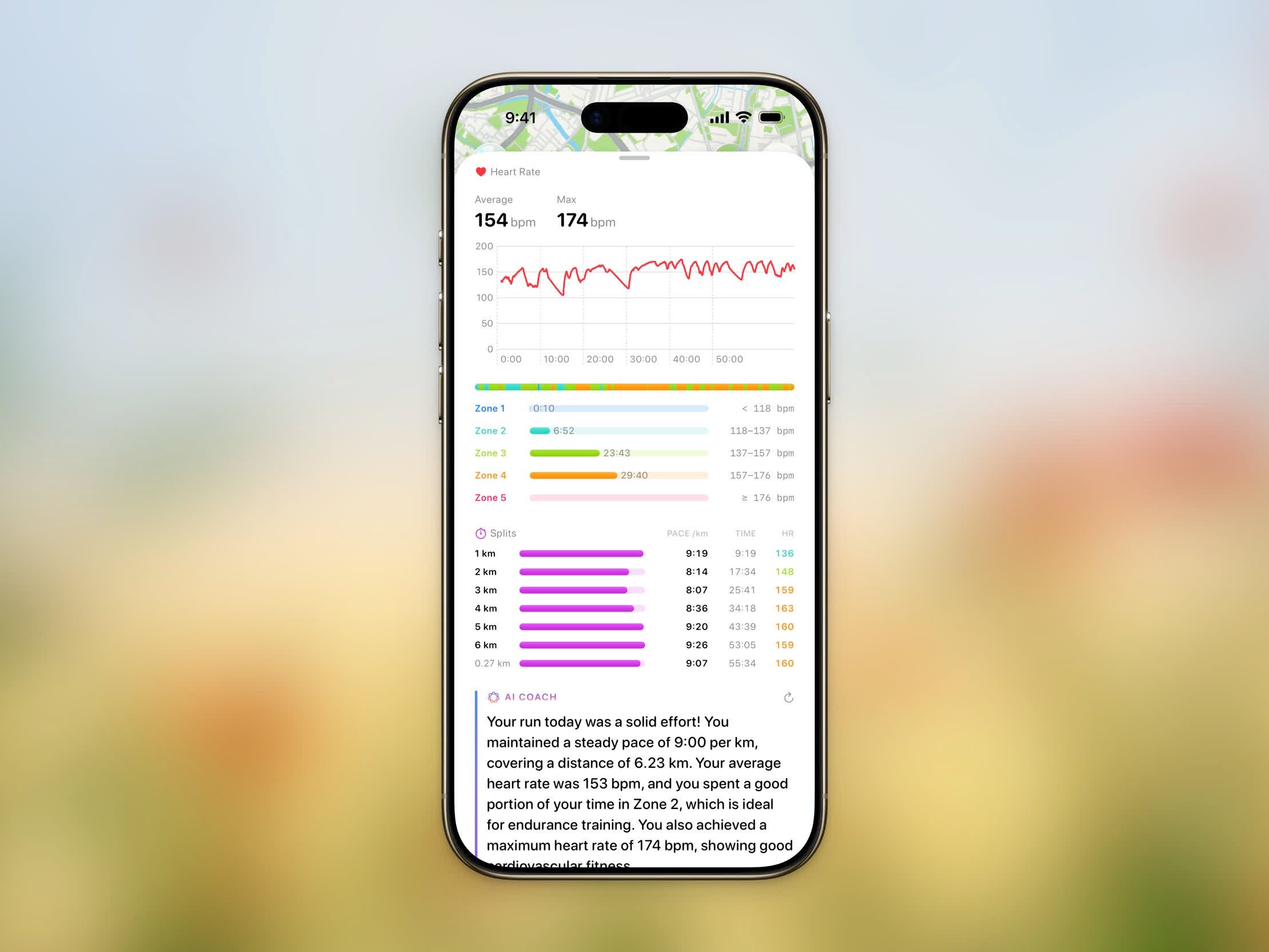 For distance-based workouts, the **Splits** table breaks your workout down by distance — one row per kilometer or mile, depending on your unit setting. Each split shows:
* **Pace** (or **Speed** for cycling)
* **Time** — Cumulative elapsed time at the end of the split
* **HR** — Average heart rate for the split, when available
A bar next to each split makes it easy to compare your fastest and slowest segments at a glance.
## Route Playback
Route playback is a Pro feature.
Replay your workout route in 3D to relive how you moved through your session. A cinematic follow camera swoops in and then glides along your path, smoothing through every turn as it tracks your position.
You can tailor the playback:
* **Map style** — switch between **Standard** and **Satellite**. Both render realistic elevation during playback for a true 3D view.
* **Speed** — adjust the playback duration from **15 to 180 seconds**. Steps picks a sensible default based on the distance of your workout, and you can speed it up or slow it down to taste.
## Sharing Your Workout
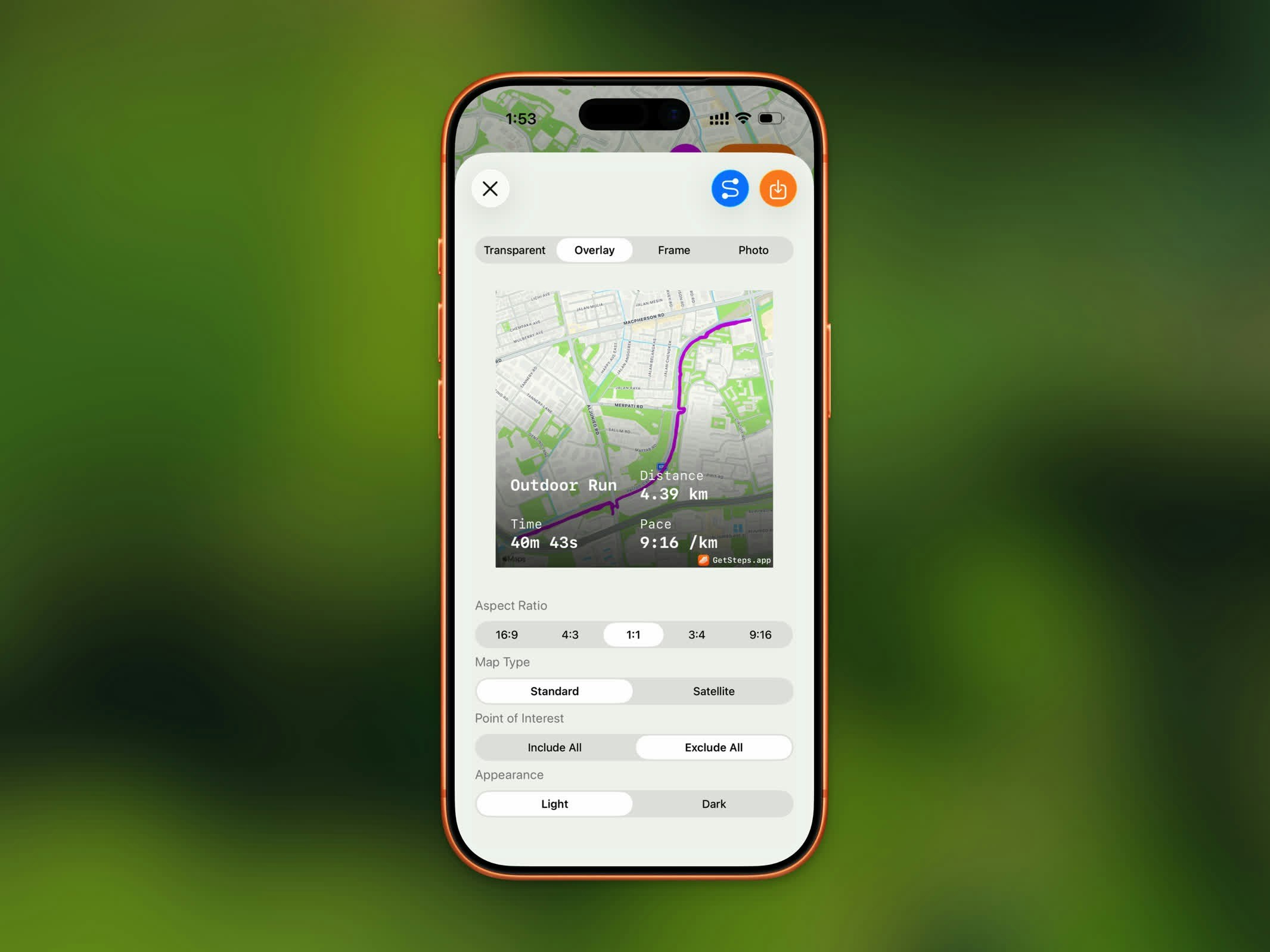
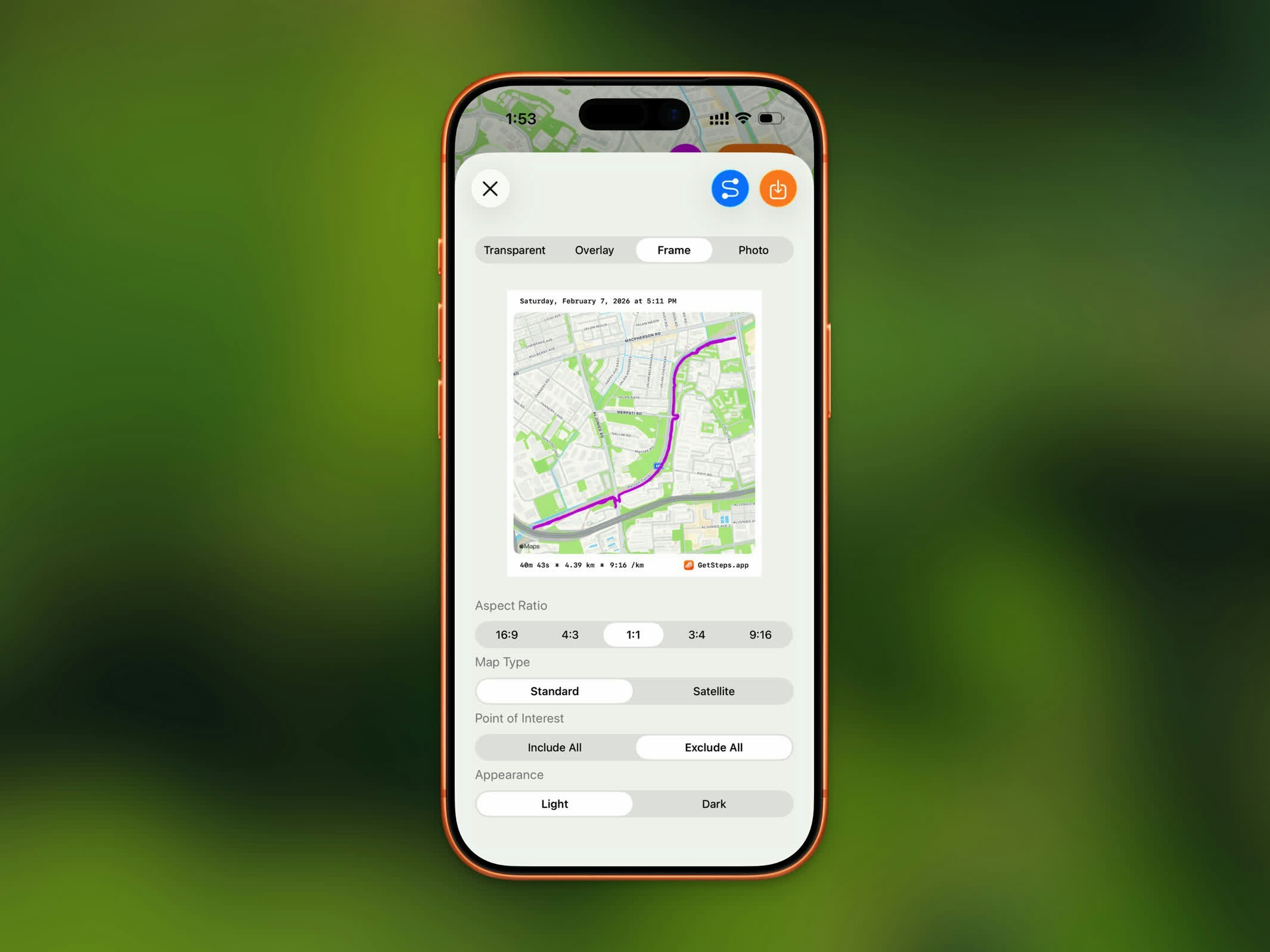
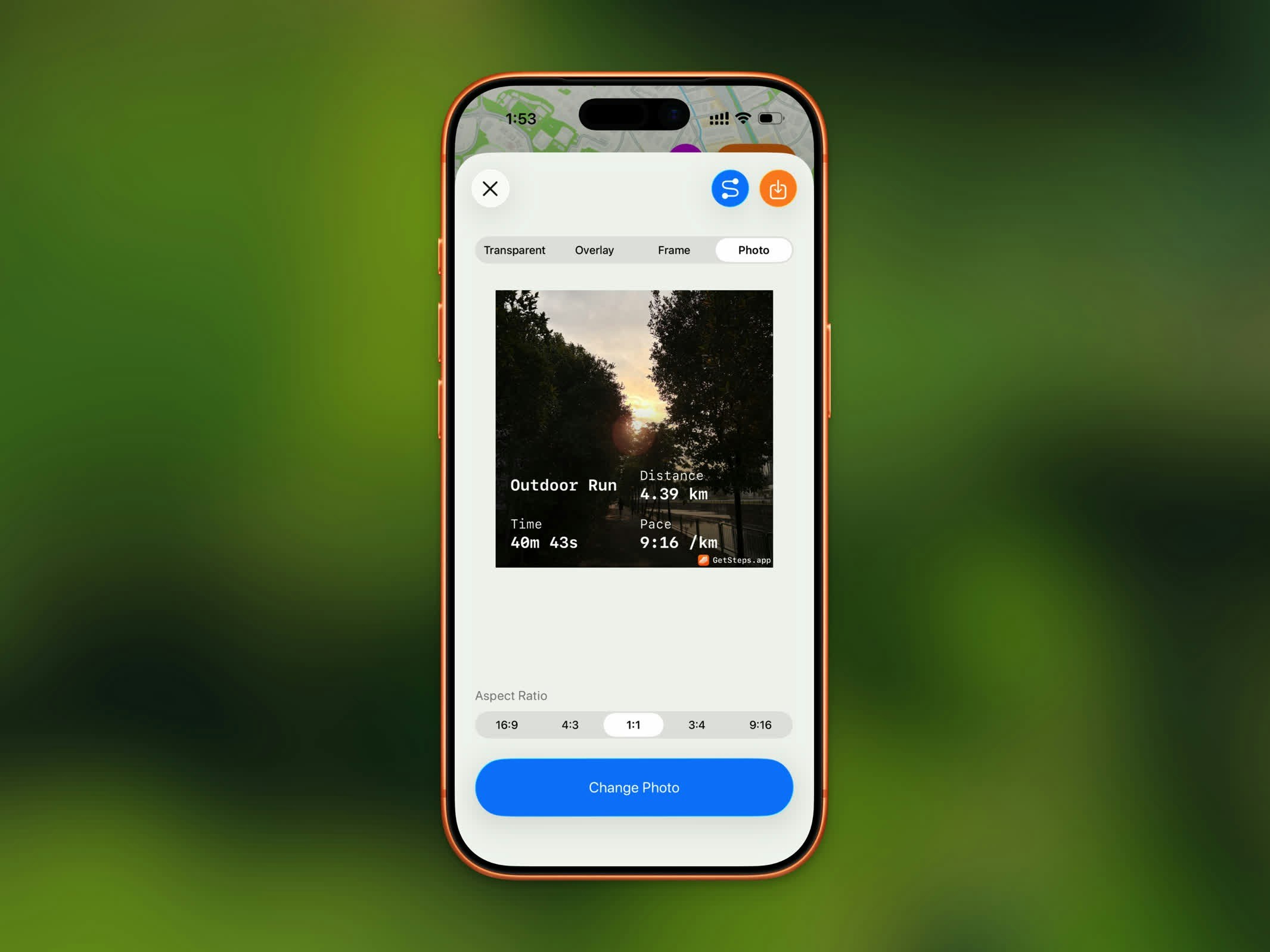
Share your workout as a styled image. Steps offers four share styles:
For distance-based workouts, the **Splits** table breaks your workout down by distance — one row per kilometer or mile, depending on your unit setting. Each split shows:
* **Pace** (or **Speed** for cycling)
* **Time** — Cumulative elapsed time at the end of the split
* **HR** — Average heart rate for the split, when available
A bar next to each split makes it easy to compare your fastest and slowest segments at a glance.
## Route Playback
Route playback is a Pro feature.
Replay your workout route in 3D to relive how you moved through your session. A cinematic follow camera swoops in and then glides along your path, smoothing through every turn as it tracks your position.
You can tailor the playback:
* **Map style** — switch between **Standard** and **Satellite**. Both render realistic elevation during playback for a true 3D view.
* **Speed** — adjust the playback duration from **15 to 180 seconds**. Steps picks a sensible default based on the distance of your workout, and you can speed it up or slow it down to taste.
## Sharing Your Workout
Share your workout as a styled image. Steps offers four share styles:
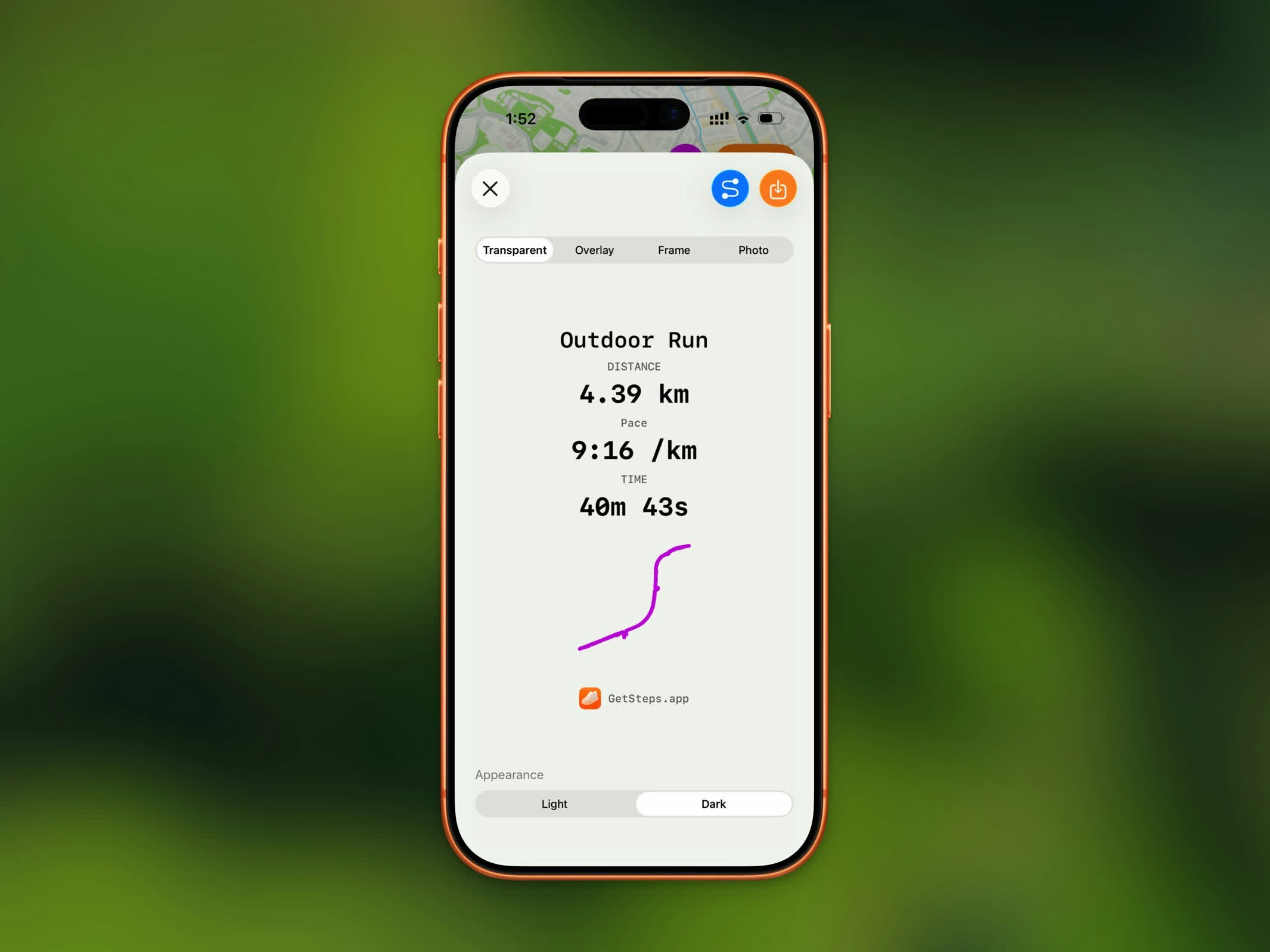
 | Style | Description |
| --------------- | ------------------------------------------- |
| **Transparent** | Stats on a transparent background |
| **Overlay** | Stats overlaid on your route map |
| **Frame** | Route map with a bordered stats frame |
| **Photo** | Stats overlaid on a photo from your library |
You can also choose from five aspect ratios: 16:9, 4:3, 1:1, 3:4, and 9:16.
For map-based styles, additional options include map appearance (light/dark), point of interest visibility, and elevation style.
See [Sharing](/features/sharing) for full details.
## GPX Export
GPX export is a Pro feature.
Export your workout route as a `.gpx` file to use in other fitness apps or mapping tools. Tap the share button and select GPX export to save or send the file.
## Deleting a Workout
To remove a workout, tap the menu button (⋯) in the top-right corner and choose **Delete**. You'll be asked to confirm, since this removes the workout from both Steps and Apple Health.
Deleting a workout removes it from Apple Health as well, and it can't be undone.
| Style | Description |
| --------------- | ------------------------------------------- |
| **Transparent** | Stats on a transparent background |
| **Overlay** | Stats overlaid on your route map |
| **Frame** | Route map with a bordered stats frame |
| **Photo** | Stats overlaid on a photo from your library |
You can also choose from five aspect ratios: 16:9, 4:3, 1:1, 3:4, and 9:16.
For map-based styles, additional options include map appearance (light/dark), point of interest visibility, and elevation style.
See [Sharing](/features/sharing) for full details.
## GPX Export
GPX export is a Pro feature.
Export your workout route as a `.gpx` file to use in other fitness apps or mapping tools. Tap the share button and select GPX export to save or send the file.
## Deleting a Workout
To remove a workout, tap the menu button (⋯) in the top-right corner and choose **Delete**. You'll be asked to confirm, since this removes the workout from both Steps and Apple Health.
Deleting a workout removes it from Apple Health as well, and it can't be undone.