> ## Documentation Index
> Fetch the complete documentation index at: https://getsteps.app/docs/llms.txt
> Use this file to discover all available pages before exploring further.
# App-Icon
> Wähle aus 17 einzigartigen App-Icons, um deinen Startbildschirm zu personalisieren
Steps ermöglicht es dir, das App-Icon auf deinem Startbildschirm aus einer Sammlung schuh-thematischer Designs auszutauschen.
Das Standard-Icon ist für alle kostenlos. Alternative Icons erfordern Steps Pro.
## Verfügbare Icons
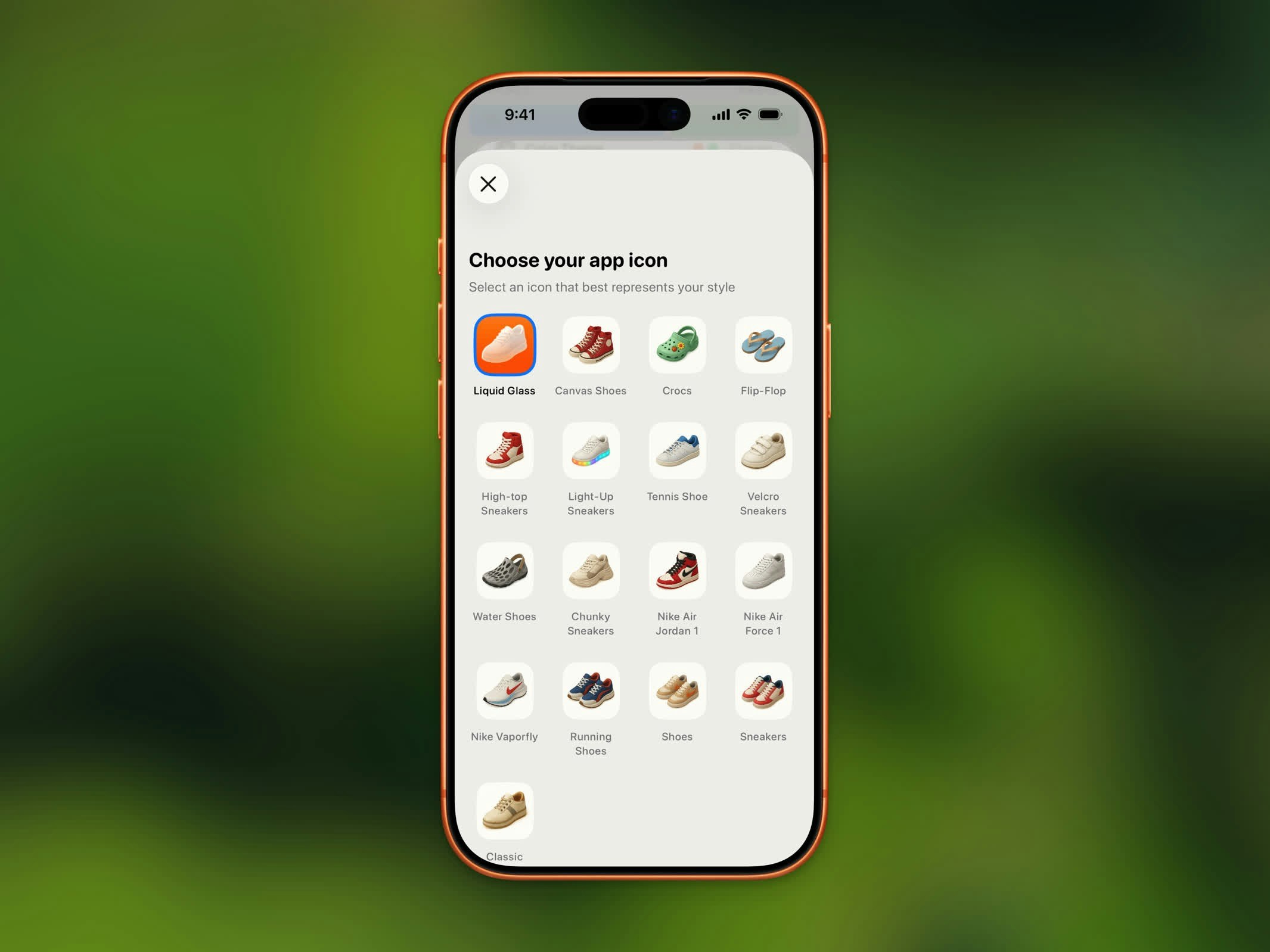 Wähle aus 17 Icon-Designs, jeweils in hellen und dunklen Varianten:
| Icon | Beschreibung |
| --------------------- | --------------------------- |
| **Liquid Glass** | Standard-Icon |
| **Canvas Shoes** | Klassische Canvas-Sneaker |
| **Crocs** | Lässige Crocs |
| **Flip-Flop** | Sommer-Flip-Flops |
| **High-top Sneakers** | High-Top-Basketballschuhe |
| **Light-Up Sneakers** | Kinderschuhe mit Licht |
| **Tennis Shoe** | Tennisschuhe |
| **Velcro Sneakers** | Sneaker mit Klettverschluss |
| **Water Shoes** | Wasserschuhe |
| **Chunky Sneakers** | Plateau-Chunky-Sneaker |
| **Nike Air Jordan 1** | Ikonische Jordan 1s |
| **Nike Air Force 1** | Klassische Air Force 1s |
| **Nike Vaporfly** | Rennschuhe |
| **Running Shoes** | Standard-Laufschuhe |
| **Shoes** | Einfache Schuhe |
| **Sneakers** | Alltags-Sneaker |
| **Classic** | Klassisches Steps-Icon |
## Icon ändern
1. Öffne **Einstellungen**
2. Tippe auf **App-Icon**
3. Durchsuche das Icon-Raster und tippe auf deine Wahl
4. iOS bestätigt die Icon-Änderung
Jedes Icon hat eine dunkle Variante, die zum Dunkelmodus deines Systems passt. Das Icon passt sich automatisch den Darstellungseinstellungen deines Geräts an.
Wähle aus 17 Icon-Designs, jeweils in hellen und dunklen Varianten:
| Icon | Beschreibung |
| --------------------- | --------------------------- |
| **Liquid Glass** | Standard-Icon |
| **Canvas Shoes** | Klassische Canvas-Sneaker |
| **Crocs** | Lässige Crocs |
| **Flip-Flop** | Sommer-Flip-Flops |
| **High-top Sneakers** | High-Top-Basketballschuhe |
| **Light-Up Sneakers** | Kinderschuhe mit Licht |
| **Tennis Shoe** | Tennisschuhe |
| **Velcro Sneakers** | Sneaker mit Klettverschluss |
| **Water Shoes** | Wasserschuhe |
| **Chunky Sneakers** | Plateau-Chunky-Sneaker |
| **Nike Air Jordan 1** | Ikonische Jordan 1s |
| **Nike Air Force 1** | Klassische Air Force 1s |
| **Nike Vaporfly** | Rennschuhe |
| **Running Shoes** | Standard-Laufschuhe |
| **Shoes** | Einfache Schuhe |
| **Sneakers** | Alltags-Sneaker |
| **Classic** | Klassisches Steps-Icon |
## Icon ändern
1. Öffne **Einstellungen**
2. Tippe auf **App-Icon**
3. Durchsuche das Icon-Raster und tippe auf deine Wahl
4. iOS bestätigt die Icon-Änderung
Jedes Icon hat eine dunkle Variante, die zum Dunkelmodus deines Systems passt. Das Icon passt sich automatisch den Darstellungseinstellungen deines Geräts an.